User Profile
The User Profile page lets each admin tailor how dates, numbers, and currencies are displayed when they're signed in. Settings are per-user and don't affect what your customers see on invoices.
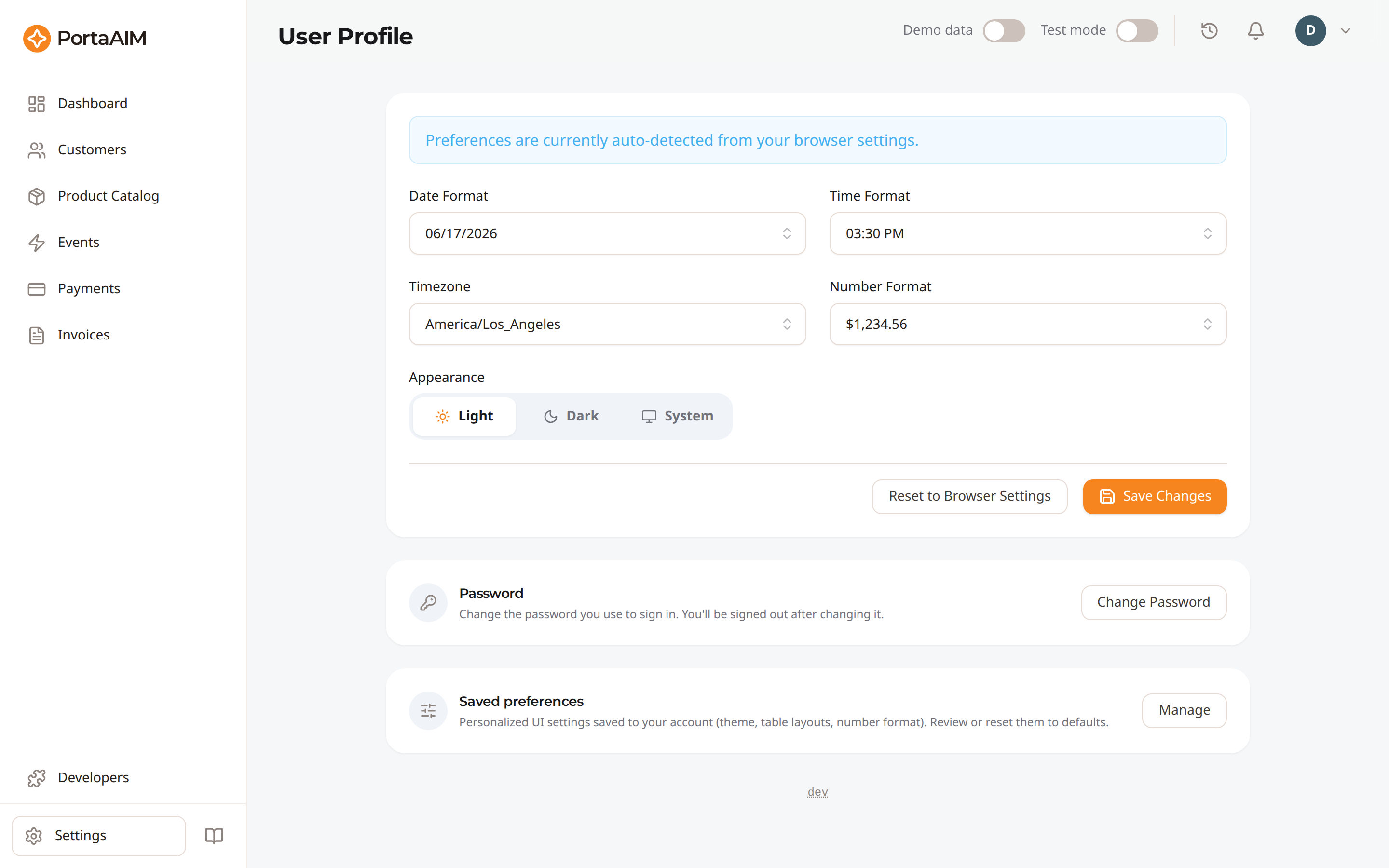
The User Profile page — per-admin date, time, number, and timezone preferences.
Accessing the User Profile
Click your avatar in the top-right corner of the dashboard and choose Profile.
Preferences
| Field | Description |
|---|---|
| Date Format | Controls how dates are displayed across the dashboard — YYYY-MM-DD (2026-06-17), MM/DD/YYYY (06/17/2026), DD/MM/YYYY (17/06/2026), or DD.MM.YYYY (17.06.2026). Each option shows a live example. Date entry fields (date pickers) also use this order and separator. |
| Time Format | Controls how times are displayed: 24-hour (15:30, 15:30:00) or 12-hour with AM/PM (03:30 PM, 03:30:00 PM). Time entry fields follow the same 12-/24-hour convention, and a 12-hour field also accepts 24-hour entry: type 15:00 and it becomes 03:00 PM. |
| Timezone | Most timestamps in the dashboard are rendered in this timezone (event timestamps, payment times, cost records, lifecycle history, etc.), and the date filters on every list page resolve against it too — so "Today" and "month to date" mean the day and month here, not on the computer you happen to be using. The full timezone list is provided by the billing backend: type any part of a zone's name to find it — the city works on its own, so prague finds Europe/Prague and york finds America/New_York — and each option shows the offset that zone is currently on, grouped by region.Note: Date-only values, such as invoice issue/due dates and billing period bounds, represent calendar dates and are always parsed and displayed in UTC timezone. This prevents timezone shifts from changing the displayed date (e.g. showing an invoice due on June 18 as due on June 17). |
| Number format | Controls the thousands separator and decimal symbol (e.g. 1,000.00 vs 1.000,00), and whether amounts carry the currency symbol ($1,234.56) or its ISO code (1,234.56 USD). Each option is labelled with exactly what it produces; the ISO code always follows the amount.On a customer's own tabs (Transactions, Invoices, Usage Events), where every row is in that customer's currency, the currency is shown once in the column header — Amount, USD — instead of on every row. Lists that span customers, such as Payments and the main Invoices page, keep it on each row, since customers can differ in currency. |
Precise Time Tooltips
Every date and time representation rendered in the dashboard (such as charges, payments, lifecycle events, and version information) includes an interactive hover tooltip (HTML title attribute). This tooltip displays the precise UTC time in the format YYYY-MM-DD HH:MM:SS (UTC) (or YYYY-MM-DD HH:MM:SS.ffffff (UTC) if milliseconds or microseconds are present). This allows administrators to inspect the exact, microsecond-accurate instant of any billing event, independent of regional or profile display timezone configurations.
These preferences are saved to your account, so they follow you across devices and sessions. On your first login, the dashboard automatically detects your browser settings (timezone, date/time format, and number format) and saves them as Auto-detected defaults. A banner at the top of the profile page indicates when auto-detected settings are active.
To override these default values, select your preferred options and click Save Changes (which turns off the auto-detected status). You can click Reset to Browser Settings at any time to re-detect your browser's parameters (including resetting the appearance theme to the system default) and set them back to the auto-detected state.
These preferences are display-only. Charges, invoices, and exported data are stored in UTC with the tenant currency — your formatting and timezone settings only change how that data is rendered.
When your timezone differs from your device
If the timezone saved here does not currently match the one your computer is in, PortaAIM says so in three places: a warning under the Timezone field, an entry in the notifications panel (the bell in the top bar, which shows a dot while the notice is active), and a line inside the date range picker naming the timezone its dates are in, how far ahead of or behind your device that is, and which timezone your device is on. Nothing is broken when this happens — it is a heads-up that the dashboard is deliberately showing you times in your profile's timezone, so a date can legitimately look a day off from your device's clock.
The warning under the field carries a Use this device's timezone link, which selects your computer's zone and leaves every other preference alone — unlike Reset to Browser Settings, which also re-detects your date format, time format, number format and theme. Either way the change takes effect when you click Save Changes.
PortaAIM's interface is currently available in English only. The Date Format, Time Format, and Number format settings control regional formatting, not the language of menus, labels, and buttons.
Saved preferences
Beyond the formatting fields above, PortaAIM remembers other personalizations to your account so they follow you across devices — your theme/appearance, table layouts (column order, visibility, widths, and page size), the page size you pick on list/grid pages such as Plans and Items (shown under a Pages group in the dialog below), and your number format.
The Saved preferences card on the User Profile page has a Manage button that opens a dialog listing everything you've customized, grouped by area. Each row has a Reset button that returns just that item to its default; each group (e.g. Tables) has a Reset all for that group; and a Reset all at the bottom clears everything (all ask for confirmation first). Resetting takes effect immediately — for example, resetting Theme & colors returns the dashboard to the default appearance.
Password
Changing your password
On the User Profile page, the Password card has a Change Password button that opens a dialog:
- Enter your current password.
- Enter and confirm a new password. A strength indicator shows how strong it is as you type. The billing backend enforces the password policy (length, complexity, and not reusing the current password); if your new password doesn't meet it, you'll see the reason inline.
- Click Change Password.
For your security, changing your password signs you out of all sessions that used the old password. You'll be redirected to the sign-in screen and need to sign in again with your new password.
If you forgot your password
On the sign-in screen, click Forgot password?, enter your email, and we'll send you a reset link. Open the link and choose a new password. For your security, the confirmation message is the same whether or not an account exists for that email.
If your password has expired
If your password has expired (or you're signing in for the first time with temporary credentials), the sign-in screen recognizes this and prompts you to set a new password right away, instead of reporting an error. Choose a new password and you'll be signed in immediately.