Dashboard
The Dashboard is your executive overview of business performance. It's the first page you see after logging in. All data is sourced from your billing engine and refreshed automatically every 15 minutes.
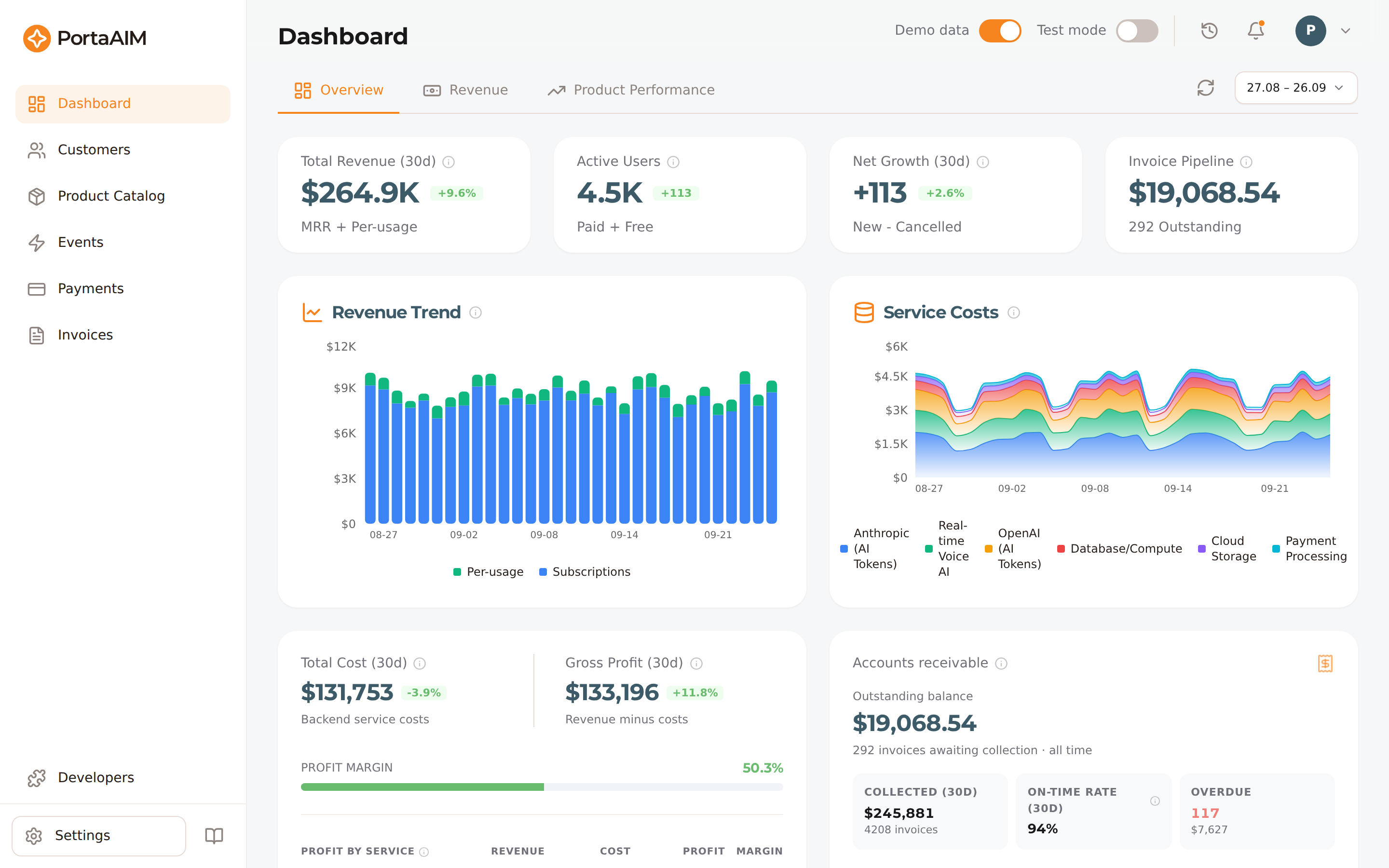
The Dashboard's Overview tab: KPI cards, the revenue trend, service costs, gross profit, and accounts-receivable aging.
KPI Cards
The top row shows the most important numbers at a glance:
| Card | What it shows |
|---|---|
| Total Revenue | Net revenue (subscriptions + usage) for the selected period |
| Active Customers | Customers currently with Active status |
| Invoice Pipeline | Total outstanding invoice balance across all unpaid invoices |
| ARR | Annualised Recurring Revenue — current MRR × 12 |
Each card shows the current value and a percentage change vs. the previous period.
Service Costs
Daily vendor costs stacked by service over the selected period. Up to seven services are drawn individually; with more than seven, the six with the highest total cost are drawn individually and the rest are grouped into a single muted Others series so the chart stays readable no matter how many services you run. Nothing is hidden — hover the Others legend entry to see exactly which services it contains and what each cost over the period. Hovering any legend entry highlights that service's band in the chart, which makes even the thinnest series easy to spot.
A session's vendor cost joins the chart once that session finishes. A session that reports its usage progressively is still being priced while it runs, so its cost lands after it settles, normally within a minute of the last report. That is deliberate: counting a running session at a part-way figure would understate cost and overstate margin for the day, and nothing would correct it afterwards.
Revenue Tab
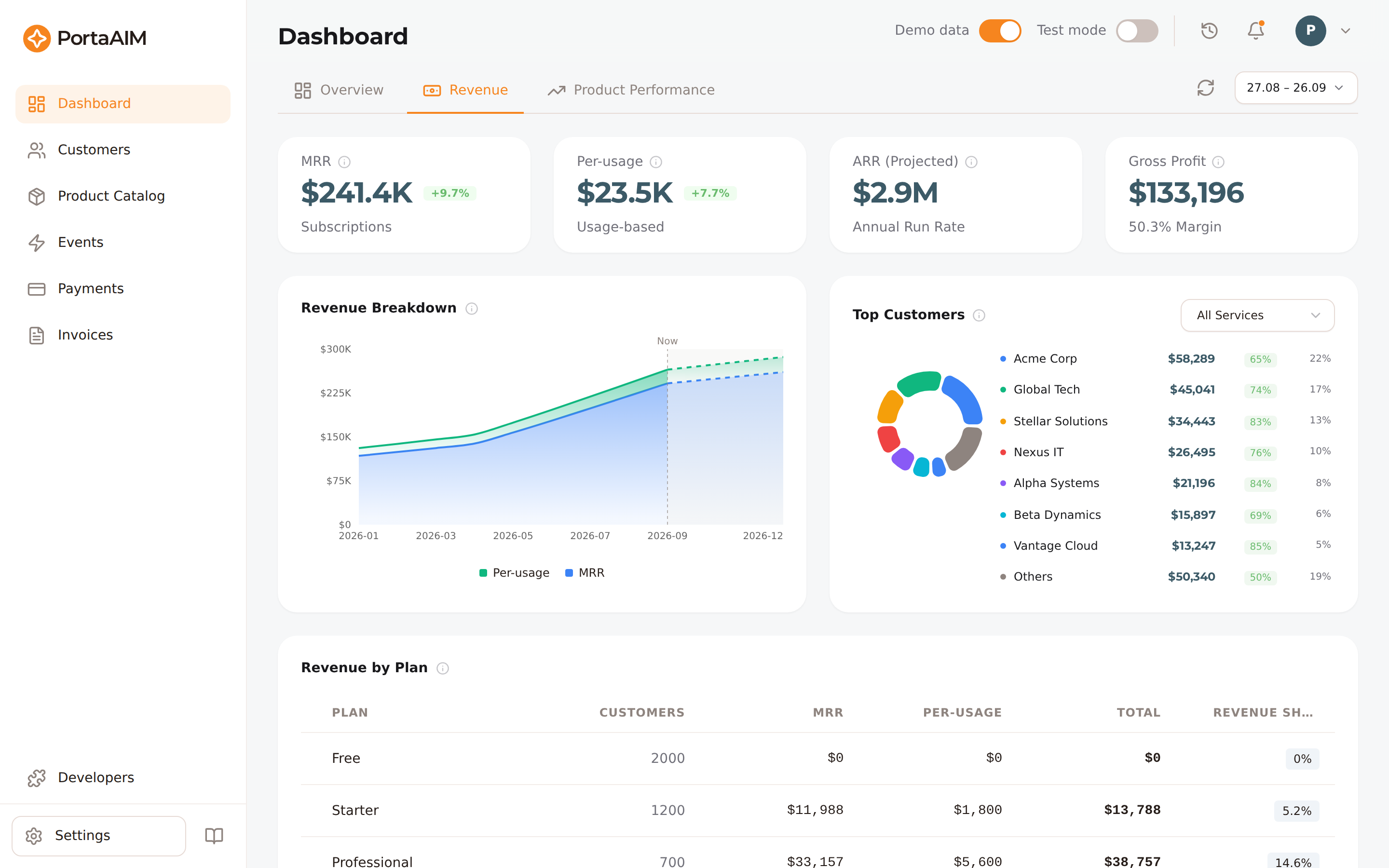
The Revenue tab: MRR, per-usage, projected ARR, gross profit, the revenue-breakdown trend with projection, top customers, and revenue by plan.
MRR
Monthly Recurring Revenue based on your active customers' subscription fees. This is a snapshot value — it reflects contracted recurring revenue at the current moment, not a sum of past charges. Plan changes or proration events during the month do not distort it.
Daily Revenue Trend
Daily revenue breakdown over the selected period:
- Subscription revenue — recurring plan fees
- Usage revenue — per-unit charges from service consumption
The day after a plan change, you might see a negative subscription bar. That is correct: PortaAIM records the prorated refund for the old plan as a negative charge, then a positive charge for the new plan, and both land once the customer's next day starts rather than at the change itself.
Monthly Revenue with Projection
A monthly view shows past months alongside a 3-month forward projection. A "Now" divider marks where actual data ends: solid fills to its left are recorded revenue, and the dashed lines with the lightly shaded region to its right are the forecast. The projection uses linear extrapolation of recent MRR and per-usage trends — not just current MRR — so a customer's usage growth or churn signal flows through to the forecast.
Revenue by Plan
A breakdown of revenue per plan for the month, with each plan's active subscribers and the MRR they pay. Useful for identifying which plans drive the most revenue vs. which have the most customers. The MRR column adds up to the MRR card.
Top Customers
The customers who generated the most revenue in the period, with revenue and gross margin percentage. The seven highest-revenue customers are listed individually; everyone else is rolled up into a single Others row, which always appears at the bottom of the list and as a muted slice in the chart. Hover any customer — in the list or in the donut chart — for a full breakdown: subscription and usage-based revenue, vendor cost, margin, and their share of total revenue for the period.
Revenue is net of refunds, so a customer who moves to a cheaper plan is ranked by what they paid after the refund, and a customer refunded more than they were charged in the month is counted in Others.
Once you have usage data for at least one service this month, a service picker appears above the chart. Pick a service to rank customers by how much of that service they consumed instead, handy for finding your heaviest users of one particular AI model or resource. In this view each customer shows their usage and revenue for that service; margin isn't available in this view.
Product Performance Tab
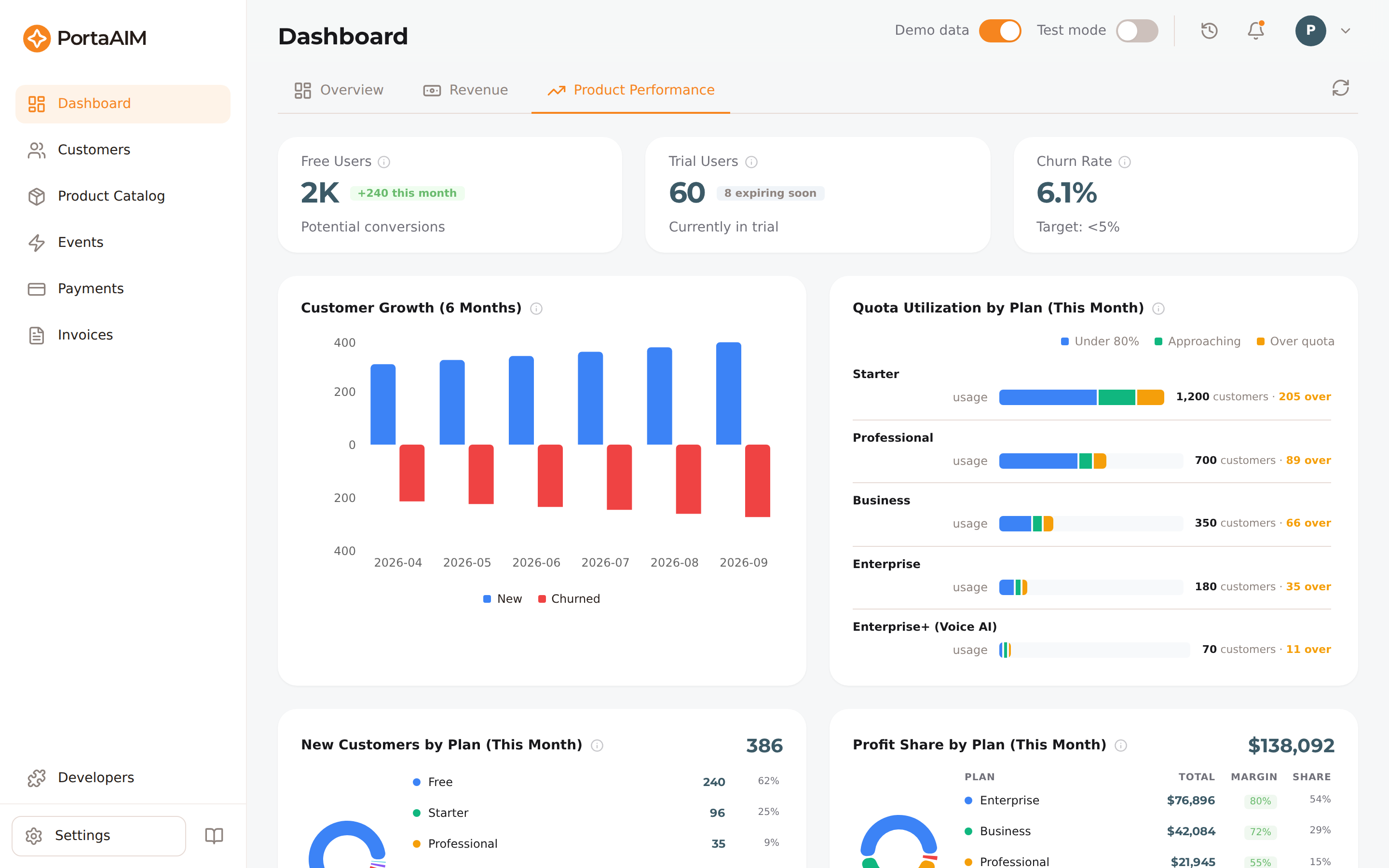
The Product Performance tab: customer growth, new customers and profit share by plan, and quota utilization.
Customers Tab
Active / Paid / Free
- Active — all customers with Active status
- Paid — active customers on a plan with a non-zero monthly fee
- Free — active customers on a zero-fee plan
Customer Growth Chart
New and churned customers plotted side-by-side. Churned customers appear as negative bars so the chart visually represents net growth (new bars up, churned bars down).
New and Churned counts
Daily new signups and terminations for the selected period.
Invoice Pipeline
The invoice pipeline section shows the health of your receivables:
- Outstanding balance — everything you are still waiting to collect: the remaining balance of every unpaid, partially paid, overdue, and previous-balance-remaining invoice (the same definition the Invoices page uses for Total Outstanding)
- Outstanding by status & age — the same balance split five ways: Not overdue (open, but not flagged overdue by the billing engine) plus four past-due bands for invoices the engine has flagged — 1–30d / 31–60d / 61–90d / 90+d. The five rows always add up to the outstanding balance
- Open count / Overdue count — number of invoices in each state; "overdue" is the billing engine's own invoice status, so these counts match the Overdue rows and tile on the Invoices page
- Status footer — "All invoices on track" appears only when nothing is overdue; otherwise it shows how many invoices are overdue, escalating to an "at risk" alert once any invoice is more than 60 days past due
This card is not affected by the date range at the top of the page — receivables are everything still owed, however long ago the invoice was issued. Only Collected (30d) and On-time rate (30d) are period-scoped, and they say so on their labels. Those two cover the last 30 days counting today, so they line up with the Invoices page's own Last 30 days filter.
Two consequences worth knowing:
- "Not overdue" is a status, not an age. It means the billing engine has not flagged the invoice overdue — which can include older invoices it never flagged. It does not mean "issued in the last 30 days".
- To reconcile with the Invoices page, open Invoices and clear the date filter to All time. Its Total Outstanding will then match this card exactly. Comparing against a 30- or 90-day view will not match, because that view only counts invoices issued within the window.
Using the Dashboard
Time Range
Use the time range selector (top-right) to change the analysis window. Default is 30 days.
Pick a preset (Today, Last 7 days, This month, …) or set a custom window by clicking the two dates on the calendar or typing them into the Start date / End date fields. Both dates are required, and the start must come first — if they end up the wrong way round, the picker says so and Apply stays disabled until you fix it. When the two dates are simply transposed, use Swap dates to correct them in one click.
Every "current period" preset — This week, This month, Quarter to date, This year — ends at the end of today rather than at the end of that period, so a window never covers days that have not happened yet.
Dates in the picker are always your profile timezone's (Settings → User Profile), not your computer's. When the two differ, the picker names the zone it is using, so a date that looks a day off from your device's clock is explained on the spot.
Environment
Use the environment toggle to switch between Live and Sandbox data. Each environment has its own independent analytics.
Refresh
Click the refresh button to recalculate your analytics on demand: it requests a fresh aggregation from your billing engine and reloads the dashboard once the new figures are ready (this can take a few moments). Aggregation also runs automatically about every 15 minutes. Hover the button to see when the data was last computed.
Dashboard data is real billing data — not estimates. Everything you see is calculated from actual charges recorded in your billing engine. If a number looks unexpected, cross-check the relevant invoices or events in the corresponding tab.
Analytics are updated every ~15 minutes. The "today" bucket includes charges recorded so far today and will grow throughout the day. See Analytics Data Freshness for details on the update cadence and end-of-month rollover.