Product Catalog
The Product Catalog is your pricing configuration center. It has three tabs: Plans, Services, and Items.
Navigate to Product Catalog in the sidebar to access it.
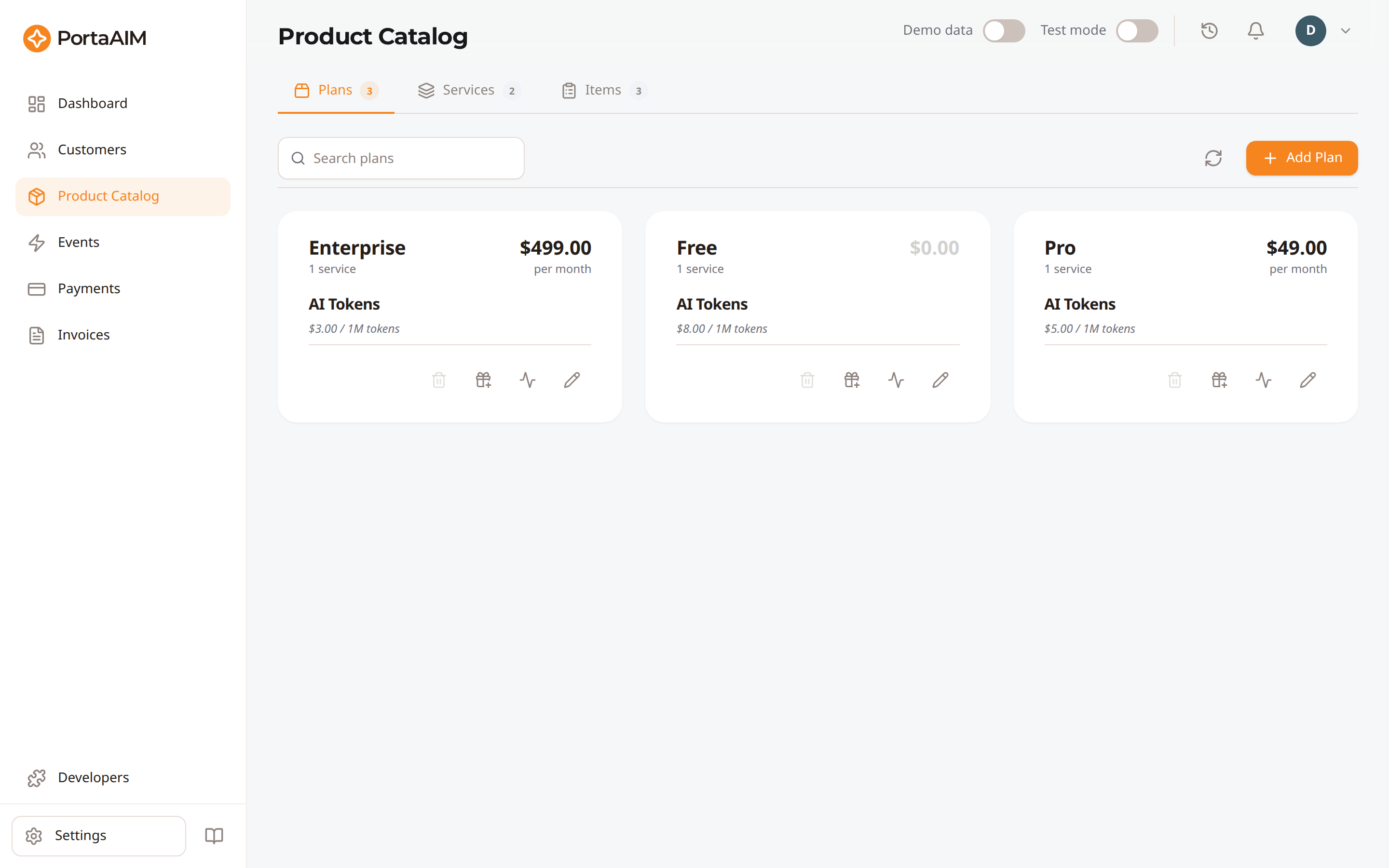
The Plans tab of the Product Catalog: each plan card shows its subscription fee and included services.
Catalog Structure
Product Catalog
├── Plans      — Pricing packages (bundles of services with rates)
├── Services   — Categories of AI capabilities you sell
└── Items      — Specific resources within each service
How They Relate
- Items are the most granular level (e.g., "GPT-4 Turbo")
- Services group related items (e.g., "LLM Tokens" contains GPT-4, GPT-3.5, Claude, etc.)
- Plans bundle services with pricing (e.g., "Pro Plan" includes LLM Tokens at $2.00/1M and Speech-to-Text at $0.006/min)
Setting Up Your Catalog
The recommended setup order is:
- Create Services: Define the types of AI capabilities you offer
- Create Items: Add the specific resources you price under each service
- Create Plans: Bundle services with pricing into customer-facing packages
See the dedicated guides for each:
Searching the Catalog
Each tab has a search bar that filters by name or code. Use this to quickly find specific items in a large catalog.
Disabled and Stale Products
Plans that have been disabled or are no longer in use are automatically hidden from the catalog view. Only active, current plans are displayed.
Precedence and code coverage
A charge is billed at the longest of your item codes that its own code reaches, and which codes it reaches is the billing engine's rule rather than a match on the start of the string: a dashed code is read as whole segments, and only when it is written in capitals. So GPT-4 catches a charge on GPT-4-TURBO, but not one on GPT-45, which parts from it inside a segment, and not one on gpt-4-turbo, which is not read as segmented at all. See How charges map to items for the full rule.
To help you manage that safely, the Catalog provides:
- Precedence sorting: items are sorted by ID length descending in the Items grid, so a broader code sits below the longer ones that extend it.
- Relational badges: grid cards mark a pair where one code really does reach the other, with
subset of {ID}andmore specific exists →. - Conflict warnings: creating or editing an item ID tells you which existing codes would catch charges on it, and which ones it would start catching. An ID colliding with an existing one in letter case alone is refused, and the warning says so, because item codes ignore case.
- Capitalised suggestions: typing an item name fills the ID field with a capitalised code, the shape that can reach a broader one. You can still type any case you want.