Invoice Template
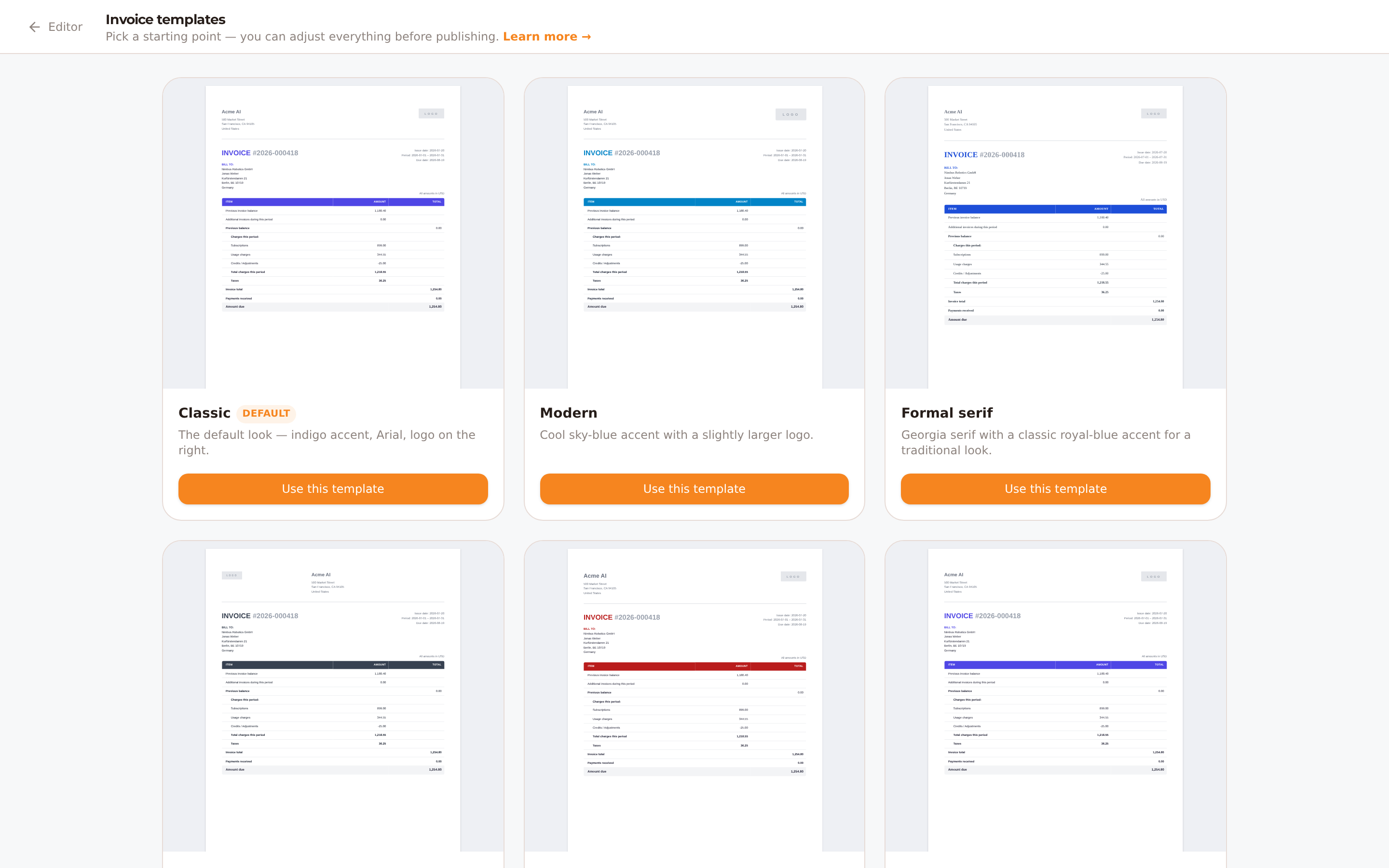
The template library — pick a starting preset (each preview uses your company details), then customize it in the editor.
Customize the invoices your billing engine generates — branding colors, fonts, your logo, and the header and footer content — without touching any code. Changes apply to invoices generated after you publish; the line-item tables and totals are always produced by the billing engine and cannot be broken by template edits.
Opening the editor
Navigate to My Company → Invoicing and press Edit invoice template. The editor opens in a dedicated full-screen mode so you can focus on the design; use Back to return to your settings.
The first time you open it (or via the editor's Templates button), you'll see the template library — ready-to-use starting points like Classic, Modern, Formal serif or Payment details. Pick one and adjust it, or start from the default look.
What you can customize
| Area | Options |
|---|---|
| General | Font (print-safe choices), base font size (the whole document scales with it), line height, table corner radius, body text color, accent color (section titles, links, table headers) |
| Logo | Upload a PNG, JPEG or WebP (automatically resized and kept under 200 KB), set its width, left/right placement and vertical offset — or remove it from invoices entirely |
| Header | Everything above the invoice tables, each its own editable section: Company details, the Invoice title (also shown on detail pages), the Invoice details lines (issue date, period, due date) and the Bill to block — plus an optional header font size that overrides the automatic scaling |
| Footer | Two first-page blocks: Payment instructions and Questions / contact, plus an optional footer font size |
Variables
Use the button in a section's toolbar to add values that fill in automatically on every invoice — your company details, the invoice number and dates, or the customer's name and billing address. They appear as small pills in the editor and show realistic sample values in the preview; click a pill to select it and remove it with its × button.
Customer name names the customer the way a postal address does: the company with its contact person on the line below, or the person alone when there is no company, or — when neither is stored — the customer ID. One pill covers all three, so the Bill to block always names someone, even for a customer you created with nothing but an ID, and you don't need to add the first/last name pills next to it.
Customer address prints the street, then city/state/postal code, then country, leaving out any line the customer hasn't filled in — so you never get a blank line or a stray comma. (Address line 2 is not shown on invoices.) The street on its own is the Customer street pill.
A Bill to section you saved earlier keeps the pills you put there. To move it onto the layout above, click the reset icon next to Bill to and publish again — reset touches only that section, so nothing else in your template changes.
Font size
Select any text in a section and use the toolbar's font size dropdown to size it independently of the rest — from small footer print up to a large invoice title. Pick Default to clear the override and let the text follow the section's normal size again.
Accent-colored text
The "INVOICE" title, "BILL TO:" and the footer headings automatically follow your Accent color setting on the General tab — change it there and they retint everywhere, including the Invoice title.
Resetting a section
Whenever a section (Company details, Invoice title, Invoice details, Bill to, Payment instructions, Questions / contact) differs from its default — because you edited it, or because the default itself moved on — a small reset icon appears next to its label. Click it to restore that section's default content and formatting without affecting anything else you've changed.
Preview
The right-hand pane shows a live preview — every change appears within a moment. Where real data is available, the preview uses it instead of a placeholder: your actual company name and address, today's date as the issue date, the due date computed from your net-terms setting, and your tenant's currency. The invoice number and customer name/address always show realistic sample values since no specific invoice or customer is being edited here.
Click anywhere in the preview that you've customized — the header, the invoice title, Bill to, the logo, or a footer block — to jump straight to that section in the sidebar.
Toggle Show detail page to see how the per-service usage pages pick up your branding, and use the zoom controls to inspect details.
The preview is an approximation. Exact pagination, page headers and font rendering are determined by the billing engine when it generates the actual PDF.
Publishing
Press Publish to upload the template to your billing engine. New invoices in the current environment (live or sandbox) use it immediately; already-generated invoices are not changed. Tick Also apply to… in the publish dialog to push the same template to your other environment in one step — a convenient way to test in sandbox first and then mirror to live.
Your edits are saved as a personal draft while you work, so it's safe to leave and come back. If a teammate publishes a different version while you're editing, you'll be asked whether to load their version or overwrite it with yours.
To go back to the stock design, open the Templates library and pick Classic — then press Publish to apply it.