Invoices
The Invoices page gives you a cross-customer view of all invoices generated by the billing engine.
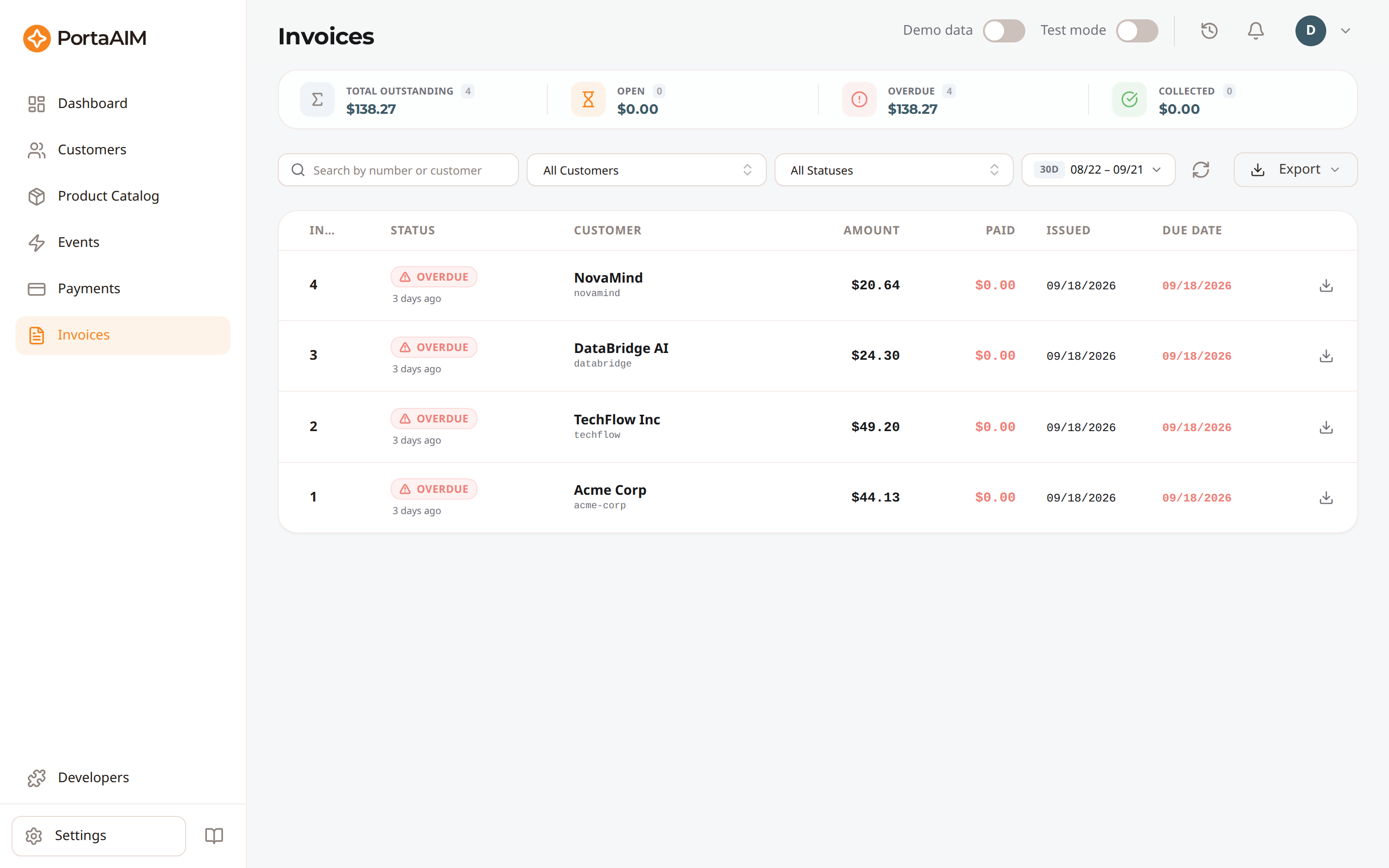
The Invoices page — summary cards (Outstanding / Open / Overdue / Collected) above a filterable, cross-customer invoice table.
Invoices Page
Navigate to Invoices in the sidebar.
Summary Widget
The top of the page shows four summary cards:
| Card | Description |
|---|---|
| Total Outstanding | Combined open debt — Open plus Overdue |
| Open | Invoices awaiting payment, by outstanding balance — includes the unpaid remainder of partially paid invoices and balances carried forward on "Previous Balance Remaining" invoices |
| Overdue | Invoices the billing engine marked overdue |
| Collected | Successfully paid invoices, at their full amount |
These totals cover every invoice matching your current filters, not just the rows visible on the page. Hover any card to see its invoice count, exact amount, and the period covered — Total Outstanding also breaks down into its Open and Overdue parts.
One exception: an invoice that carries no collectible and no collected amount is counted in no card — a credit note or "Do Not Pay" invoice, a voided invoice, or one still in the review workflow. The billing engine treats them the same way, reporting their outstanding balance as N/A. A credit note reduces what the customer owes overall, so its effect shows up in the customer's Balance, not in these cards.
A short note appears under the cards only when the totals need a caveat: when some of the listed invoices are not counted (as above), when the search box or customer filter has narrowed the list (the totals then follow what is on screen), when no invoices were issued in the selected period, or when a very large period had to be capped.
The Dashboard's Accounts receivable card covers all open invoices, with no date restriction. To compare the two, clear the date filter here to All time (hover the date control and click the ×) — Total Outstanding will then match the dashboard exactly. A 30- or 90-day view counts only invoices issued in that window, so it is expected to be lower.
Invoice Table
The table lists all invoices, newest first (most recent issue date at the top; same-day invoices in descending invoice-number order). The same order applies to the Invoices tab on a customer's detail page. Columns:
- Invoice number
- Status (see Invoice Statuses below)
- Customer name
- Amount (invoice total)
- Paid — how much has been received. On a partially paid invoice, hover it for the outstanding balance. Invoices where no payment applies — a credit note or "Do Not Pay" invoice, or a voided one — show a dash instead of $0.00, unless a payment really was recorded against them
- Billing Period (period covered)
- Issued and Due Date
Filtering
- Search: By invoice number, customer name, or customer ID
- Customer filter: Show invoices for a specific customer. Hover an option to see the full name and customer ID; type either (even a fragment of the ID) to narrow the list
- Status filter: Any of the invoice statuses
- Date range: Filter by issue date. Hover the control and click the × to clear it and show All time
Actions
Click an invoice row to open the detail sheet with:
- Full invoice breakdown
- Download PDF: Get a PDF copy of the invoice
Exporting Invoices
You can export your invoices list using the Export button next to the Refresh button in the search toolbar:
- Export as CSV: Downloads a spreadsheet-compatible file containing all columns for the currently filtered invoices (complete with human-friendly formatted amounts, currencies, and dates).
- Export as JSON: Downloads a structured JSON file containing raw database records, ideal for local developers or scripting tools.
How Invoices Are Generated
Invoices are automatically generated at the end of each customer's billing period. The billing engine:
- Aggregates all usage charges for the period
- Adds subscription fees
- Calculates applicable taxes
- Applies any credits or adjustments
- Creates the invoice with a unique number
How the Total Is Rounded
Usage can cost fractions of a cent, so an invoice total is rounded to the nearest 0.00001 of your currency, not to a whole cent. Whatever is too small to appear stays on the customer's balance and reaches a later invoice, so nothing is lost and nothing is billed twice. The small difference rounding makes appears in the customer's Transactions as a Charge when the total was rounded up and as a Credit when it was rounded down.
Generating an Invoice On Demand
You do not always want to wait for the billing period to close. When a customer pays during signup and needs an invoice for that payment right away, open the customer, go to their Invoices tab and click Generate Invoice. The same thing is available over the API.
This is not a preview. To issue the invoice, the billing engine closes the billing period at that point: it charges the subscription fees and taxes that fall inside it, and moves the customer's period on, so the next invoice starts where this one stopped. Your customer's billing anniversary does not move. None of it can be undone, which is why PortaAIM asks you to confirm.
The dialog offers two optional settings:
| Field | Leave it empty and… | Set it to… |
|---|---|---|
| Due Date | your Net Terms, from Settings → My Company → Invoicing, decide the due date | any day from today on |
| Charges Up To | everything charged up to now is invoiced | invoice up to the start of that day, leaving that day's own charges for the next invoice. It can be any day from the day after the period started up to today |
Both dates are read in the customer's own timezone, not yours.
If an invoice was already issued on demand for this customer in the current period, PortaAIM says so and names it, and you can still issue a second one deliberately.
After it is generated, the invoice opens so you can download its PDF straight away. The billing engine also emails it to the customer on its own, if that customer's settings allow it. See How invoices reach your customers.
Invoice Statuses
Invoice statuses come directly from the billing engine, one-to-one — the status you see here is the same status the billing engine reports for that invoice.
| Status | Meaning |
|---|---|
| Unpaid | Invoice generated, no payment received yet |
| Partially Paid | A portion of the amount has been paid |
| Paid | Fully paid |
| Overdue | The billing engine marked the invoice overdue — payment wasn't received by the due date |
| Do Not Pay | No payment is required — the invoice has a zero or credit balance (e.g. a credit note) |
| Previous Balance Remaining | The charges for this period are covered, but a balance carried over from a previous invoice is still outstanding |
| Under Review | The invoice is being reviewed before it is sent to the customer |
| Rejected | The invoice was rejected during review and needs adjustment before sending |
| Approved | The invoice passed review and is approved for sending |
| Voided | Manually cancelled; excluded from outstanding totals and aging |
Invoice PDF
Each invoice is available as a branded PDF containing:
- Your company details (from Company Profile settings)
- Customer details
- Line items: usage charges by service, subscription fees
- Tax line items
- Total due and payment terms
Which services appear. The PDF lists every service the customer used during the period, including services you did not charge for, so the customer can see what an included allowance covered. A service is left out of the breakdown when all three of these are true:
- It carries no price on your plan.
- It earned nothing this period.
- It cost you money to supply.
That is how usage you buy from a supplier and never resell stays off the customer's invoice.
The PDF's look — logo, colors, fonts, and the header/footer content — is customizable with the invoice template editor under My Company → Invoicing. Template changes apply to invoices generated after you publish; existing PDFs are not altered.
How invoices reach your customers
The billing engine emails the invoice on its own, to the address on the customer record, and re-sends it at a set interval after the due date. This includes an invoice you generate on demand: the engine sends that one as soon as it has issued it. A customer with no email address receives nothing, and PortaAIM does not flag it. PortaAIM has no button that sends an invoice, so to reach a customer sooner, download the PDF and send it yourself.
Invoicing in the test environment emails the customer exactly as the live one does. Nothing suppresses it there. So a rehearsal on a test customer that carries a real address reaches that address. Give test customers addresses you own.
Before you generate invoices, set up your company profile, then set the payment terms in Settings → Invoicing. For more information, see Invoice Settings.