Registration
Create your PortaAIM account to start managing billing for your AI SaaS business.
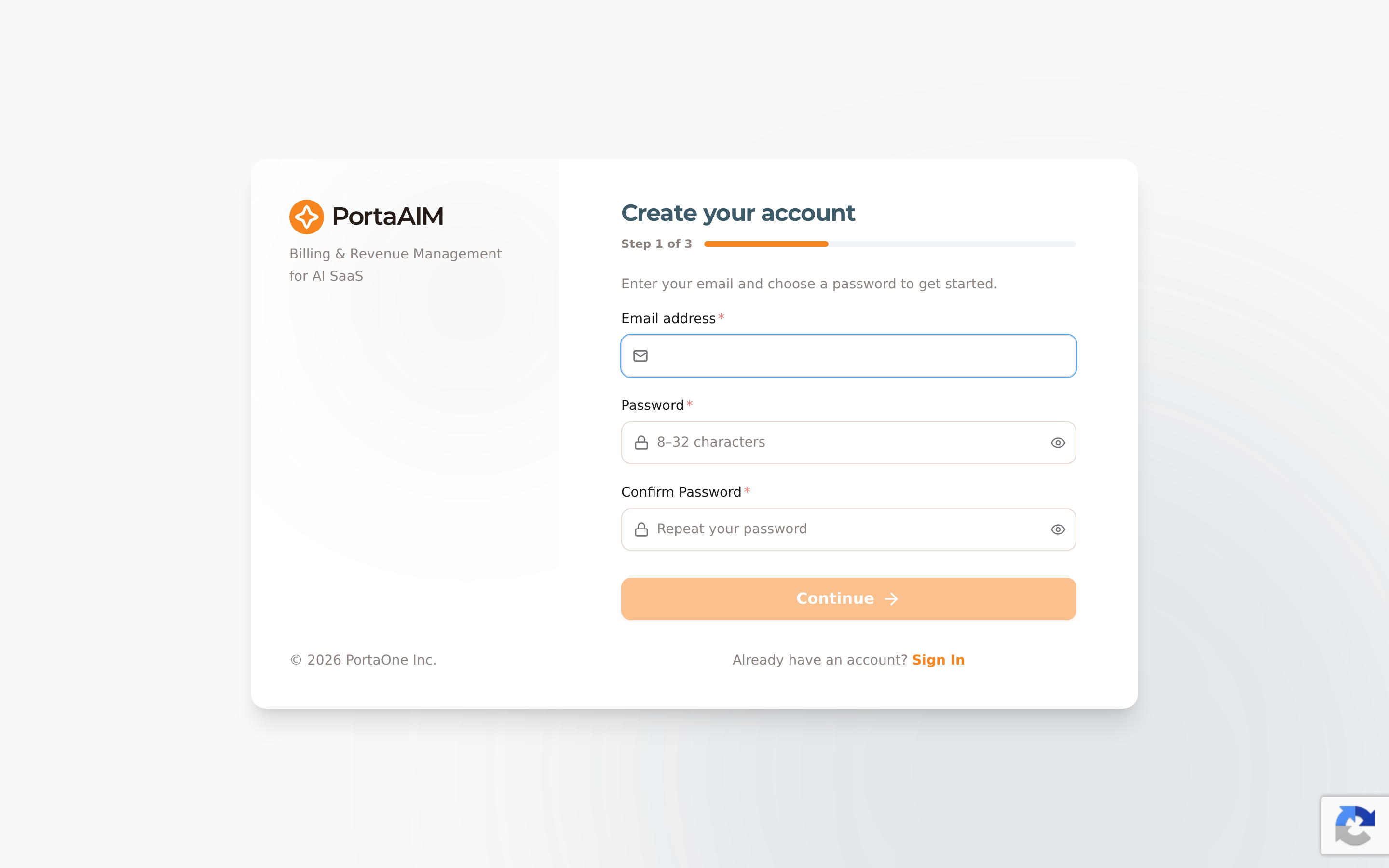
Step 1 of registration — your email and password.
Registration Flow
Step 1: Submit Registration Form
Visit the registration page and provide:
| Field | Required | Description |
|---|---|---|
| Company name | Yes | Your business name |
| Yes | Admin account email | |
| Password | Yes | Account password (8–32 characters), entered twice, with a live strength indicator |
| Country | Yes | Company's country of registration |
| Currency | Yes | Billing currency (3-letter code, defaults to USD) |
| Address | No | Optional company address (can be added later) |
Complete the invisible reCAPTCHA verification (happens automatically).
Step 2: Email Verification
After submitting, you'll receive an email with:
- A 6-digit OTP code — enter it on the verification screen
- A magic link — click to verify automatically
The OTP expires after 15 minutes by default. If it expires, you can request a new one.
Step 3: Account Ready
After verification:
- Your tenant environment is automatically provisioned
- You're logged in and redirected to the onboarding wizard
- Both Live and Sandbox environments are created
Notes
Password
- The password you set at signup becomes your admin sign-in password (8–32 characters).
- Some deployments don't ask for a password during signup (controlled by the
registration_password_enabledsetting). In that case, a temporary password is generated for you and emailed once your account is provisioned — you can change it later from your User Profile.
Email Policy
- Business email required by default: Registration with public email providers (Gmail, Yahoo, Outlook, etc.) is blocked. Only business domain emails are accepted.
- This is controlled by the
registration_allow_public_emailsetting. When set totrue, public emails are allowed with a warning instead of being blocked. - The email becomes your admin login
Country Restrictions
Registration is blocked from:
- North Korea (KP)
- Iran (IR)
- Cuba (CU)
Currency Selection
Your billing currency is selected on the registration form (defaults to USD). The form pre-fills a sensible default based on your country selection — common mappings:
- United States → USD
- United Kingdom → GBP
- European countries → EUR
- Japan → JPY
You can change the currency on the form before submitting. Choose carefully: this is your only chance. The currency is fixed when your environment is created and cannot be changed afterwards, by you or by support. Every plan, service and vendor cost you create is denominated in it, and a new customer defaults to it. Adding a second currency to an existing account is not self-serve: contact support.