Managing Customers
The Customers page is your central hub for managing everyone who uses your AI services.
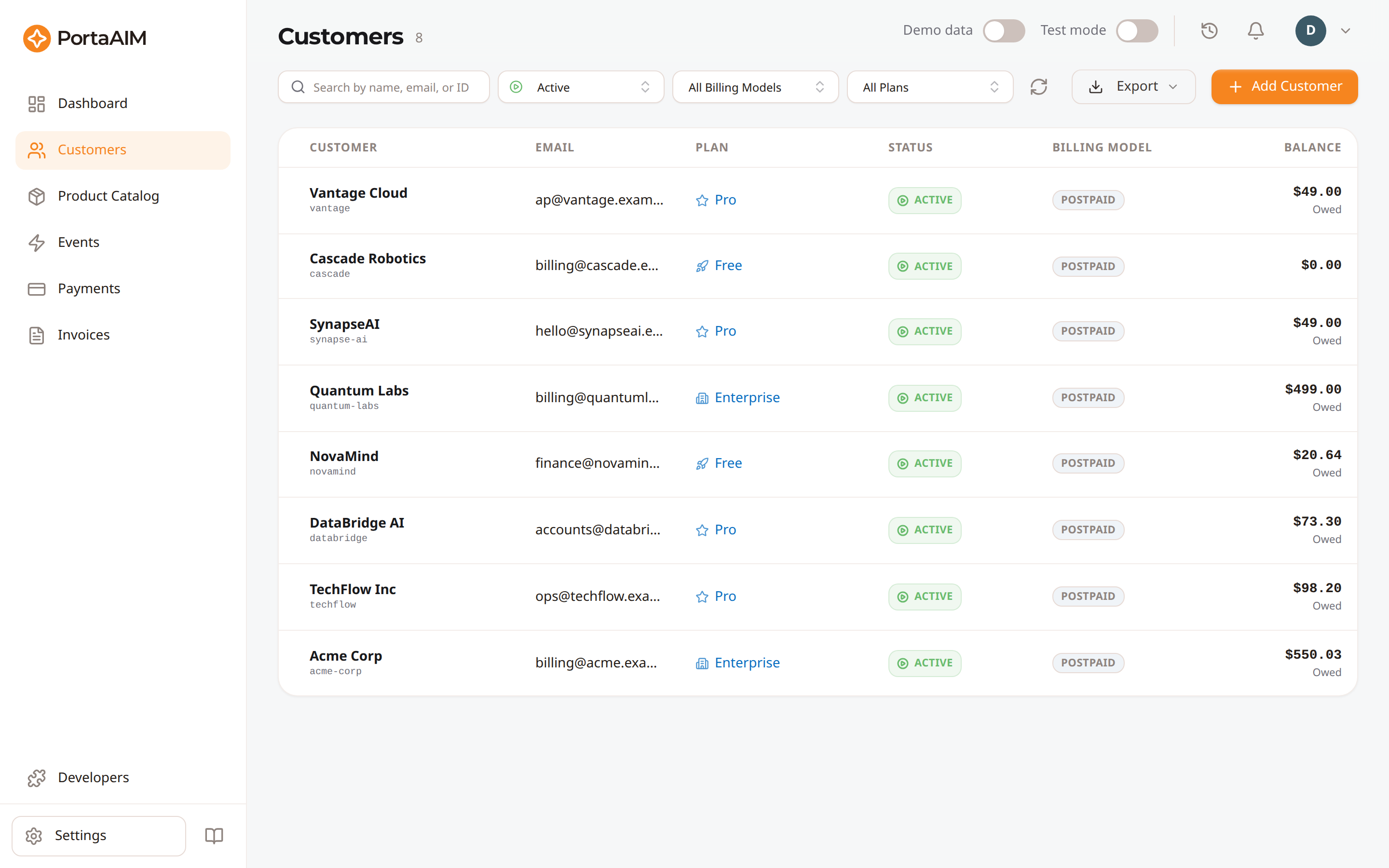
The Customers page — each row shows the customer, email, plan, status, and balance.
Customer List
Navigate to Customers in the sidebar to see your customer roster.
Search & Filter
- Search: Find customers by name, email, ID, or external ID
- Status filter: Filter by Active, Suspended, or Terminated
- Billing model filter: Show only prepaid or only postpaid customers
- Plan filter: Show only customers on a specific plan
Exporting Customers
You can export your customer directory using the Export button in the search filters toolbar:
- Export as CSV: Downloads a spreadsheet containing all columns for the currently filtered customers (complete with human-friendly formatted amounts, credit limits, plan names, and creation dates).
- Export as JSON: Downloads the same columns with raw, typed values instead of formatted ones.
Both formats carry each customer's Billing Model, the Balance shown on screen together with the Balance Type naming what that figure is, their Credit Limit, and their Available Funds. The Balance Type is what tells the three figures apart: adding an amount owed to one held in credit, or to a prepaid customer's remaining funds, gives a number that means nothing. Exported figures match the screen.
The Credit Limit cell is empty for a prepaid customer, who has no limit, and it reads
No limit for a postpaid customer with unlimited credit. In the JSON export both are null, so
read the Billing Model column to tell them apart.
Both formats also carry Suspended At and Terminated At beside Created At, so an export of closed or suspended accounts says when each one reached that state. Each date appears only against the status it belongs to, as it does on the customer's own page, so a terminated customer shows a termination date and an empty suspension date even if it was suspended earlier. An export that includes closed accounts takes noticeably longer than one of active customers, because each closed account's date is looked up individually.
Customer Table
The list is ordered newest first — the most recently created customers are at the top. Hovering a column heading tells you how the table is currently ordered, and clicking one sorts by that column instead: the Customer column sorts by the name shown in bold, not by the ID beneath it.
Each row shows:
- Customer name and email
- Current plan
- Status badge
- Billing Model: Prepaid or Postpaid (see Billing model)
- The amount, with a word beneath it naming what it is: Owed for a postpaid customer who owes you, In credit for one who has paid more than they owe, and Available for a prepaid customer, whose cell shows the funds they have left rather than a balance. The only negative figure you will see is a prepaid customer charged past their funds, which is a real debt.
- Trial badge with end date (if applicable)
Click any row to open the customer detail page.
Creating a Customer
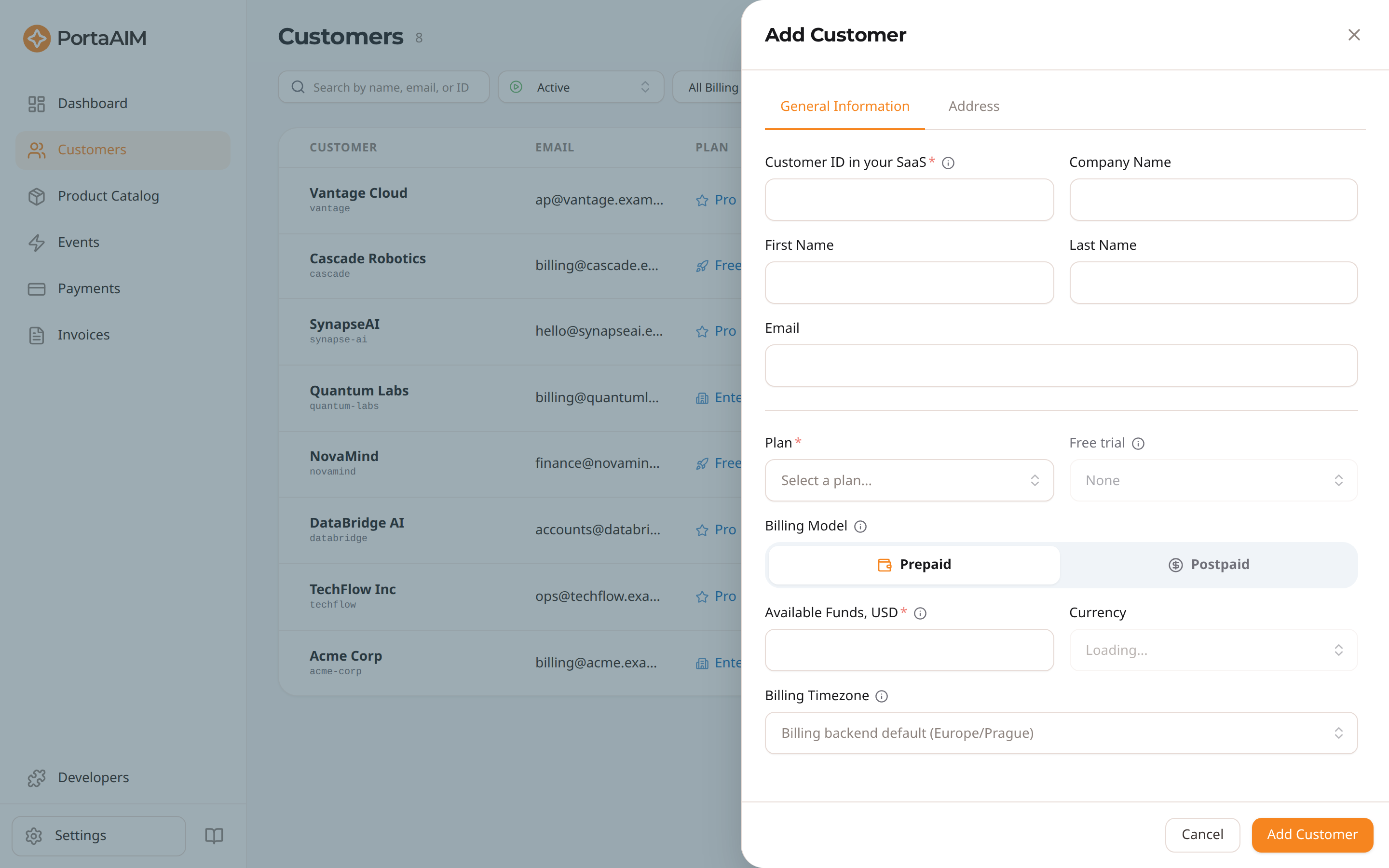
The Add Customer panel slides in over the list — enter the customer's ID, contact details, plan, and credit limit.
- Click Add Customer on the Customers page
- Fill in the customer information:
- External ID (required) — the customer's unique identifier in your SaaS platform (e.g., your user ID, customer ID, or organization ID). This is how the Charging API knows which customer to bill when your app sends a usage event.
- First name / Last name / Company name (optional — used on invoices)
- Email (optional but recommended — used to deliver invoices and notifications)
- Billing model: Prepaid (the default) or Postpaid. Postpaid customers use paid services now and owe you, up to the credit limit you set. Prepaid customers load money first and spend only what they have loaded. Set this now if it matters: like the billing timezone, it cannot be changed later. See Billing model below.
- Plan (optional — assign later if needed)
- Renewal term: when the selected plan offers an annual price, a Monthly / Annual toggle appears (showing each price and the annual saving). Pick the term the customer is signing up for; the annual term commits them to a 12-month period billed up front. Plans without an annual price are always monthly, and on a plan with an annual price but no subscription fee the Monthly option is disabled, because that term charges nothing. A free trial always starts on the monthly term, whatever the toggle says. The annual commitment can only begin after the trial converts to the paid plan, so switch the term then (see Changing a Customer's Plan).
- Free trial (optional) — when the selected plan has a trial variant, use the Free trial field to choose a duration (7, 14, 30 days, or a custom number). The trial ends automatically on that date and the billing engine switches the customer to the paid plan. If the field is disabled, the selected plan has no trial variant.
- Credit limit (postpaid) or Available Funds (prepaid): the same slot, asking whichever question the billing model calls for. For a postpaid customer, how much they can owe you before their paid services pause: enter an amount,
0to allow no debt at all, or choose No limit to never pause paid services over an unpaid balance. No limit also stops a plan's free quota from blocking anything, because a quota is measured against the credit limit; the form warns you when you choose it for a plan whose quota is meant to block. For a prepaid customer, how much money they start with. It is required either way: enter0and they are created with nothing to spend, so their paid services are paused until you top them up. - Billing timezone (optional) — the timezone this customer's billing period closes in. Because their period ends at midnight in this zone, it also decides which day a usage event is billed in. Search by city (typing
new yorkfindsAmerica/New_York). Leave it empty to use your billing environment's own timezone. Set this now if it matters: it cannot be changed later — see Billing timezone below.
- Save
The customer is created in the billing engine with the selected plan and begins their billing period.
Billing model
A customer is either Postpaid or Prepaid, chosen when they are created:
- Postpaid customers use paid services now and settle up. Their balance rises as they use services and falls as they pay, and their paid services pause once it reaches the credit limit you set.
- Prepaid customers load money first. They have no credit limit, and their paid services pause when their available funds reach zero, until they top up. Give them their opening funds when you create them, or they start out paused.
The billing model cannot be changed after the customer is created. The billing engine accepts the choice only when the customer record is opened, so the field is shown read-only on the Edit Profile panel. A customer created on the wrong model has to be replaced with a new one rather than corrected.
Both models are shown the same way everywhere: one amount with a word naming what it is. A prepaid customer's screens report their available funds instead of a balance, because their balance is only the negative of the same figure.
Charges can still run a prepaid customer past their funds. Their available funds then show as a negative amount, which is what they owe you and what a top up has to cover before their paid services resume. That is the one negative figure in the product: a customer who is merely out of funds shows zero.
Billing timezone
A customer's billing timezone anchors their billing period, so it decides both when their period closes and which calendar day a usage event falls on. A customer in New York billed on a European timezone has charges from their late afternoon counted against the next day.
Choose it when you create the customer. Afterwards it is shown read-only on the customer's General tab and on their edit form, because the billing engine only applies a timezone change when a billing period closes — it cannot take effect immediately. To move an existing customer to a different timezone, contact your billing administrator.
Leaving the field empty applies your billing environment's own timezone, and the empty field names it, for example Billing backend default (Europe/Prague), so you know what a customer will get before you create them. Each environment has its own setting, so switching between Live and Sandbox can name a different zone. If the name is unavailable, the field reads only Billing backend default: the customer is still created on that environment's timezone, you cannot see which one beforehand.
Customers created before this field existed use the billing environment's timezone; their General tab now shows which one that is.
Customer Detail Page
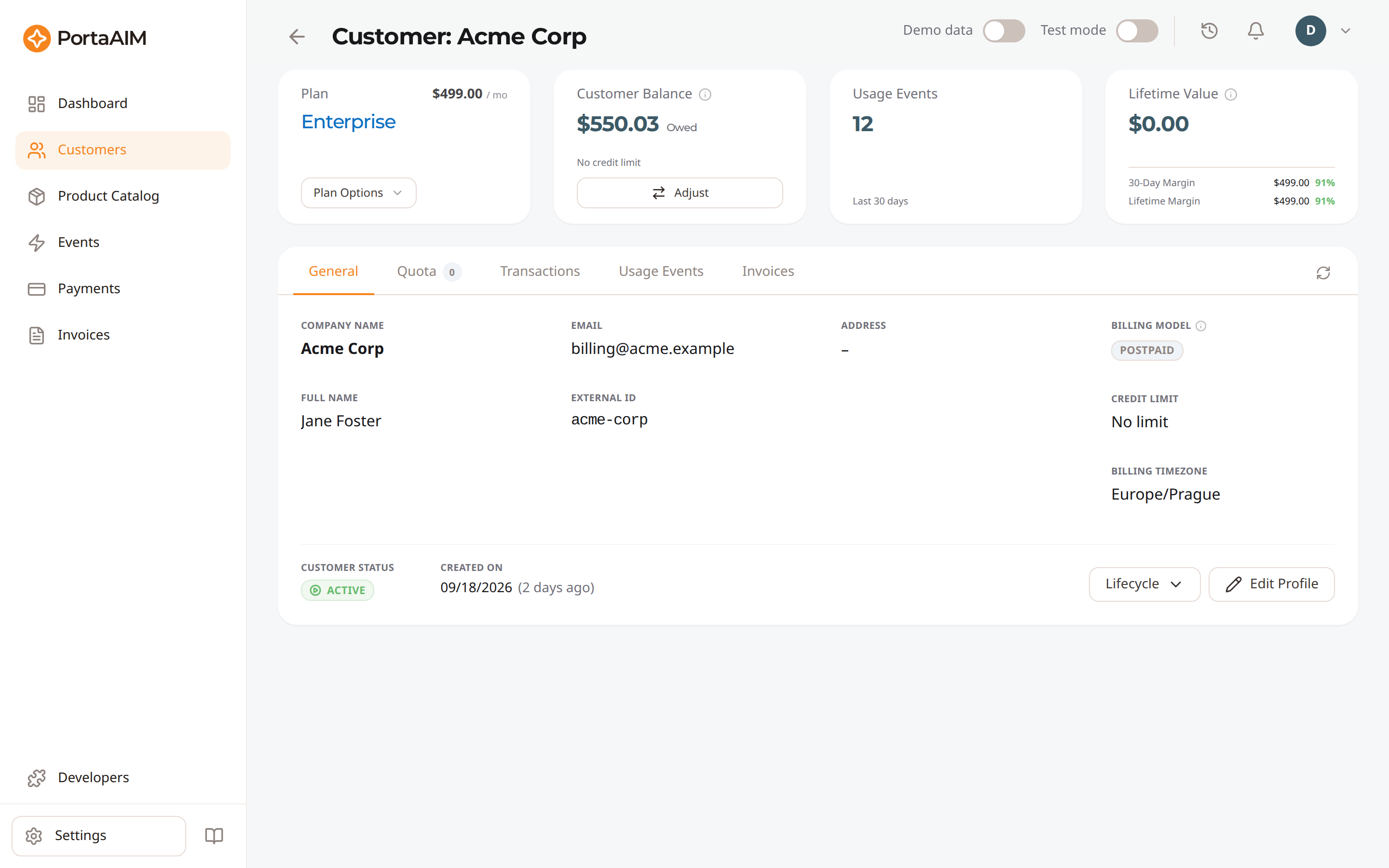
The customer detail page: plan, balance, usage, and lifetime value up top, with tabs for General, Quota, Transactions, Usage Events, and Invoices.
Click on any customer to see their full profile and billing data.
Stats Dashboard
Quick metrics cards showing:
- Plan summary (current plan, subscription fee, trial status). Click the plan name to open the plan's read-only details; Plan options holds the two actions that change the plan (Change Plan, Customize Plan)
- The customer's money, with an adjustment shortcut. For a postpaid customer this is Customer Balance with what they owe or hold in credit, and a line beneath saying what their credit limit means for them right now: how much of it they can still spend while they are spending against it, and otherwise the limit itself, or the rule it sets (a customer allowed no debt, or one with No credit limit). Hover the heading for what each wording means. For a prepaid customer it is Available Funds: the money they have left to spend, which reads zero once it runs out and goes negative if charges take them past it
- Usage events in the last 30 days, with the percent change vs. the prior 30 days
- Lifetime Value — total amount actually collected from the customer across all non-voided invoices since they joined. Outstanding (unpaid) amounts are not counted. Computed from the billing backend and refreshed in the background (cached for up to 12 hours). The same card also shows the customer's margin — both a 30-day and a lifetime figure (amount and percentage). Margin is revenue (usage plus subscription charges) minus the vendor cost of usage; subscriptions have no vendor cost, so they count as full-margin revenue. A green percentage is profitable, red is a loss.
"Last 30 days" on these cards means today and the previous 29 days, counted in whole days in UTC, the same way the dashboard's Collected (30d) counts them. The window moves at midnight UTC.
Still counting. The first time a customer with a long usage history is opened, and again after the customer is renamed or terminated, PortaAIM counts its past usage in steps while the page stays open. Until it finishes, the usage count and both margins carry an hourglass mark. Hover the mark to see how far the count has come, for example "these figures include usage up to 2 Mar 2026". The figures grow as the page refreshes itself every few seconds, and the mark disappears once the count is done. The 30-day figures read low until the count reaches the last 30 days. If you leave the page, the count pauses and continues the next time the customer is opened. If the mark says usage could not be counted, open the page again later.
Keeping up with new charges. While the page is open, the usage count and both margins refresh themselves every 30 seconds, so a charge appears within about half a minute, including one your own system sends through the charging API. A charge you make from Test Charges usually shows straight away. Selecting Refresh on the Usage Events tab also refreshes the cards.
General Tab
The customer's own record: who they are and how the account is set up.
- Company name, full name, email, and the External ID your platform sends on charging requests
- Address
- Billing Model (Prepaid or Postpaid), and the Credit Limit (or No limit) for a postpaid customer. A prepaid customer has no limit to show, and their available funds are already the figure on the card above
- The read-only billing timezone
- Customer Status, the date the customer was created, and the date they were suspended or terminated where that applies
- Lifecycle menu: Lifecycle History, Suspend Customer / Reactivate Customer, and Terminate Customer
- Edit Profile to change the record. A terminated customer is read-only, so the button reads View Profile
Quota Tab
How much of the plan's included usage is left in the current period. The tab header counts how many of the plan's services carry a metered quota, and the counters are read live from the billing engine, so the reset date and any counted usage are the real ones rather than a nightly snapshot. The period itself is shown as Period above the cards; a customer with no counter yet has no reset date to show, so that row shows no dates and every card reads Open period. A plan with no metered allowance shows No Metered Quotas.
Editing the plan does not give anyone a fresh allowance. The billing engine carries each customer's consumption across the change, and the cards keep counting from where they were. What the edit does move is the Period start, to the moment you saved, while the reset date stays where it was. So a start date later than you expect marks a plan edit, not a new period.
One thing the engine cannot carry is usage past the allowance. For a customer already over it when you edit, the cards show less than the customer has really used, and further usage raises the figure without ever restoring the exact one, until the period resets. Watch for this after an edit that raises an allowance: a customer who is genuinely over the old one can read WITHIN QUOTA in green until they use enough of the new one. The badge never drives billing, since customers are charged on what the billing engine counted rather than on what the card shows. Raising an allowance mid-period does hand them the difference as covered usage, counted from that same capped figure, so a customer who is already over gets the full increase free.
One card per metered service, each showing:
- Included allowance and how much is remaining, with a progress bar and how much has been used (with the percentage once there is usage)
- Expires on, the date the quota resets (Open period until the first counter exists)
- What happens past the allowance: an Overage rate per unit, Overage: at the plan's per-unit price where the plan prices the service pay as you go, or Service Blocks at Limit. A blocking allowance reads Will Not Block · no credit limit instead when the customer has no credit limit, because a quota can only stop a service by counting against one. What bounds a customer's own spending is on their money card, above the tabs
- A state badge: WITHIN QUOTA, APPROACHING LIMIT, IN OVERAGE, or BLOCKED. A customer with no usage recorded yet reads NO USAGE DATA: the allowance is known from the plan, but nothing has been counted against it. A customer with no credit limit reads OVER QUOTA where they would otherwise read BLOCKED, because nothing blocks them
- Expand a card for the per-item breakdown, where the plan sets item-level quotas
For what each state means and exactly when it appears, see Get Customer Quota in the API reference.
Transactions Tab
A single ledger of every billing transaction for the customer — usage charges, subscription fees, payments, credits, refunds, manual charges, and taxes — replacing the separate Charges and Payments views.
- A totals row appears above the table, covering every transaction matching your current filters, not just the rows visible on the page
- Charges and Payments & Credits are totalled separately, never netted against each other, so each figure is the plain sum of the rows it covers. Charges takes what added to what the customer owes; Payments & Credits takes what reduced it. A refund counts as a charge, because it hands money back
- Cost and Margin appear alongside when any matching transaction reports a vendor cost
- Date and time, transaction Type (Payment, Credit, Refund, Charge, Usage, Subscription, Tax, or Other for a record that fits none of them), service/item, comment, and amount
- Every amount is shown as a plain positive figure: a payment of $10 reads
10.00, the same as it does on the Payments page. The Type badge is what tells you which way the money went, so a top-up is never displayed as a deduction - The date is when the charge was applied, not the period it covers: a subscription billed on 3 June for the period starting 2 June is dated 3 June
- Filter by service: pick a service from the dropdown — the financial categories (Payments, Credits / Adjustments, Subscriptions, Taxes) each appear as their own service, alongside your usage services
- Filter by type: pick one of the types above. The service dropdown cannot do this job: a credit and a manual charge are both recorded against Credits / Adjustments, so only the type filter separates them. The totals row narrows with it
- Search: matches the item and the comment, two of the values the table shows, so every row a text search returns can be accounted for in that row's own Service / Item and Comment cells. Hover a comment that is cut off to read it in full. The service is not searched, since the service dropdown filters it
- Find one record: paste its reference whole, or type its number. A number selects a record only by its whole number, so
234does not select record1234that way. It still matches any comment holding234, including one that prints a reference likeTR-1234, which is why a number can return more than one row - Date range: filter by when the charge was applied
- A subscription fee and its refund name the plan they belong to, and say in plain words what they are:
Subscription FeeorSubscription Refund. The plan is named as it is called today, so renaming a plan renames it on past charges too, shortly after the rename rather than instantly - A refund does not say why it was issued, and cannot: the billing backend records every subscription refund the same way, whether it followed a plan change, a suspension or a closed account. What it does say is the Period the money covers, on the record's detail view, in the customer's own dates so it matches the invoice for that period
- Amounts that reduce what the customer owes are shown in a neutral colour, not red
- Click any row for the full details. A row billed under a session also names that Session and the Lock ID of the reservation it was taken against: the same ids your own integration sent and received, so you can match a billed row against your logs. A charge made outside a session shows neither, and a payment shows neither because it is recorded against the customer rather than a session
- Toggle Sessions to fold the transactions of one call into a single row, with the Charges, Cost and Margin that call earned. One request often bills more than one transaction: the charge that earned the revenue, and charges on the other services that carried the cost. Flat, they sit on separate rows
- Expand a row to see the transactions it totals. A row that holds only one transaction has nothing to expand: it is a transaction billed outside any session, such as a subscription fee or a payment
- Hover any row for the icon at its end. On a folded row it opens the session, with its services, its money and a breakdown of the charges it totals; on a single transaction, and on each charge inside an expansion, it opens that transaction
- Every transaction appears in both views, so the totals row above the list reports the same figures whichever one you are in
- Each row leads with its Session id, the same id the Usage Events sessions list carries, so the same session can be found between the two views by name. A row billed under no session (a subscription fee, payment, credit or manual adjustment) shows a muted dash there
- This view keeps the Comment column alongside Cost and Margin, and does not carry the column settings the flat list does. A row that holds one transaction shows its own comment, just as the flat list does. A folded session shows no comment on the row itself. A comment is written for a specific charge, and reads in the expanded rows and in the charge's own details
- Margin is shown only when every transaction in the row reports a vendor cost. With a cost known for some of them, the figure would read higher than the call earned, so the Cost column shows what is known and the margin is left blank. Hover either one to see how many are covered
- Filtering narrows both views the same way, so a filtered session row shows only the transactions that matched, and says how many. Open the row, or the Sessions view on the Events page, for the whole call
Usage Events Tab
Raw usage events with full metadata, including the attempts that failed or were rejected. Those never become a charge, so the Transactions ledger has no row for them and this tab is the only place they appear.
- A totals row appears above the table in both the flat and Sessions views, covering every matching row, not just the rows visible on the page (see Events). The search and the service filter apply across the whole time window, so the totals and the page count follow them. In the Transactions view, the search looks at the service and the item, never at the customer's own name or ID
- Time, service and item, and processing status, with an In quota, Partial or Over grant badge where one applies
- Units, the amount Charged, and your vendor Cost (for services that track a vendor cost). An authorization pairs the units granted with the units requested. A charge pairs the usage reported with the reservation it was measured against, or shows one figure when there is no reservation to name
- Click any event for detailed view
- Toggle Sessions to group the customer's events into logical sessions, with revenue, cost and margin per session (see Sessions)
Invoices Tab
All invoices for this customer:
- The same summary cards as the global Invoices page, scoped to this customer's invoices
- Invoice number and billing period
- Amount due and remaining balance
- Payment status — mirrors the billing engine one-to-one; see the invoice statuses
- Download PDF: Get a PDF copy
Changing a Customer's Plan
- Open the customer detail page
- Click the plan change button
- Select a new plan from the dropdown
- If the new plan offers an annual price, choose the Monthly / Annual term. Ending a trial keeps the customer on the monthly term regardless — the annual commitment can be set on a later plan change, once the conversion has happened.
- Confirm
If the new plan's free quota is meant to stop a service and this customer has No limit as their credit limit, the panel warns you: the quota will not stop anything for them. Give them a credit limit first, or accept that they keep using the service for free after the quota is spent.
The plan change takes effect immediately: the customer is on the new plan's prices and entitlements from the moment you confirm it.
The charges follow a day later. The old plan is charged through the end of the day you switch, and at the customer's next billing run after midnight in their time zone the unused part of the subscription fee is refunded and the new plan is charged for the rest of the billing period. The Transactions tab shows nothing new until then, which is expected rather than a lost charge.
On the annual term, one charge covers twelve billing periods. The twelve are the rest of the current period and the next eleven. As on the monthly term, the current period is charged only for its remaining days.
For example, a plan costs $480.00 a year, which is $40.00 per period. A customer moves onto it with 30 of 31 days left in the current period. The charge is $40.00 × 30/31 + 11 × $40.00 = $478.71.
Switching only the term on the plan a customer already has normally takes effect from their next billing period: the period they are in keeps the price they were already charged. Switch it on the same day you added the plan, before the first period has been billed, and it still catches that first period.
If the customer is on a free trial, this instead ends the trial — a different operation with different timing and no proration. The only plan offered is the paid version of the plan being trialled, the customer converts at the next billing run, and they are charged one full billing period starting that day. See Ending a Trial Early.
Customizing Plan Entitlements
You can override individual plan entitlements for a single customer without forking the plan in your catalog. This is the standard way to give a high-value customer higher limits (e.g. more seats) or unlock a feature flag without changing what every other customer on the same plan gets. See the Entitlements concept for the value-precedence model — customer overrides win over plan defaults, which win over library defaults.
Opening the Customize Plan sheet
- Open the customer detail page.
- In the Plan card, click Plan options → Customize Plan.
- The Customize plan side sheet opens with one row per entitlement on the customer's plan.
If the customer's plan has no entitlements attached, the sheet shows an empty state and there is nothing to customize.
Editing values
Each row shows the entitlement's display name, a type-aware editor (toggle, number input, date/datetime picker, or enum select), and a status badge:
- Plan default — the row currently inherits the plan-level value (or the library default if the plan does not set one).
- Customer override — the row carries a value specific to this customer.
Edit any row to set or change an override. The badge updates live as you type. Click Reset on a row to revert it to the plan default — the row's editor resets and the badge flips back to Plan default. When you are done, click Save overrides. Only rows you actually changed are sent to the billing engine: rows you set back to the plan default are cleared on the server, and rows whose value matches the existing override are skipped.
Resetting all overrides
To clear every customization for this customer in one go, click Reset overrides at the bottom-left of the sheet and confirm. All rows revert to their plan defaults. The button is disabled when the customer has no overrides.
How overrides surface elsewhere
- A Customized badge appears on the Plan card on the customer detail page whenever the customer has at least one override.
- Changing the customer's plan (Plan options → Change Plan) clears every existing override — the new plan's defaults take over. Re-customize from the new plan if needed.
- To learn about override changes, your code pulls each customer's effective values on demand from
GET /api/v1/customers/{id}/entitlements. The response includes avalue_sourcefield (override,product, ordefault) so you always know which layer the value came from. See the Entitlements API reference.
Adjusting Customer Balance
To adjust a customer's balance manually:
- Open the customer detail page
- Click Adjust Balance
- Select one of the available operations:
- Manual charge: Charge the customer for an out-of-band service or fee (increases the balance). For postpaid clients, this increases what they owe; for prepaid clients, this decreases their available credit.
- Payment: Record a payment received outside the normal payment flow (decreases the balance). For postpaid clients, this reduces what they owe; for prepaid clients, this increases their available credit.
- Credit: Apply a goodwill credit, refund/correction, or promotional adjustment (decreases the balance). For postpaid clients, this reduces what they owe; for prepaid clients, this increases their available credit.
- Enter the amount and a reason (comment)
- Submit
Balance adjustments are recorded as transactions and appear in the Transactions tab.
Customer Lifecycle Management
You can manage the lifecycle state of a customer directly from their detail page using the Lifecycle menu.
Suspending a Customer
Suspension is a reversible state where the customer's service access is blocked.
- Open the customer detail page.
- Click Lifecycle > Suspend Customer.
- Confirm the action in the modal.
The customer's status changes to Suspended (Warning badge). While the customer is suspended, the billing engine refuses to authorize their sessions, though a charge that your integration posts directly is still billed. The engine also credits back one day's subscription fee for each day that the suspension lasts.
A suspension you apply here is an administrative decision, so a payment does not lift it. The customer stays suspended, whatever the amount and whatever they still owe, until you reactivate them.
Reactivating a Customer
If a customer is suspended, you can restore their access at any time.
- Open the customer detail page.
- Click Lifecycle > Reactivate Customer.
The status will return to Active, and service usage can resume immediately.
Terminating a Customer
Termination is a permanent, irreversible action. Use this when a customer relationship ends completely.
- Open the customer detail page.
- Click Lifecycle > Terminate Customer.
- Type the customer's name to confirm (safety check).
Once terminated, the customer status changes to Terminated (Danger badge) and service access is permanently revoked. The account becomes read-only: you can still view the profile (the Edit Profile button becomes View Profile), balance, invoices and history, but you can no longer edit the profile, adjust the balance, or change the plan. Because Plan options offers only plan changes, the whole menu is disabled for a terminated customer — hover it for the reason — while the plan name stays clickable, so you can still review the plan they were on.
Lifecycle History
The Lifecycle > Lifecycle History option opens a side sheet listing the changes recorded for this customer, newest first, each with its date and time.
The badge on a row is the lifecycle value that change maps to: Active, Suspended or Terminated. The billing backend tracks three things in one timeline, so a row can lift an administrative block while a separate suspension is still in force, and the badge reports only what that one change was. Several distinct changes share each of the three values, so where the recorded change is finer than the badge, the row names it underneath:
| Under the badge | What it means |
|---|---|
| Blocked by administrator | Someone blocked the customer's services by hand, rather than the billing backend suspending them over an unpaid invoice. |
| Unblocked | That manual block was lifted. |
| Service limited | Shown as Suspended. Access is partially restricted: some services are still allowed, others rejected. This is the billing backend's partial restriction ahead of a full suspension for an overdue invoice. |
| Suspension on hold | A suspension that was due has been postponed to a later date. |
| Suspension hold ended | That postponement has run out. |
| Provisionally terminated | Services have stopped, but the customer can still be reactivated. |
| Exported | The customer has been moved to another installation. |
| Customer created | The account's creation date, added by PortaAIM. It is the oldest row on every customer and is not a change the billing backend recorded. |
A row with no line underneath is an ordinary activation, suspension or termination, which the badge already states in full.
What this history does not hold. States that follow the balance are never recorded. A customer whose status reads No available funds or Credit exceeded has no matching row here, and nothing has gone missing: the billing backend works those out from the balance and the credit limit every time it is asked, so there is no moment of change to record. They stop the moment the balance moves, which is also why the customer status can change without the history growing.