Entitlements
Entitlements let you attach typed feature flags and limits to your pricing plans. See the Entitlements concept for the model and value-precedence rules.
This guide covers the admin-UI workflow. For the REST API used by your application code, see the Entitlements API reference.
Where to Find Entitlements
Entitlements are configured inside the plan editor, as one of the steps alongside General, Pricing, and Free Trial. There is no separate "Entitlements" page — the library of definitions builds up as you attach entitlements to plans.
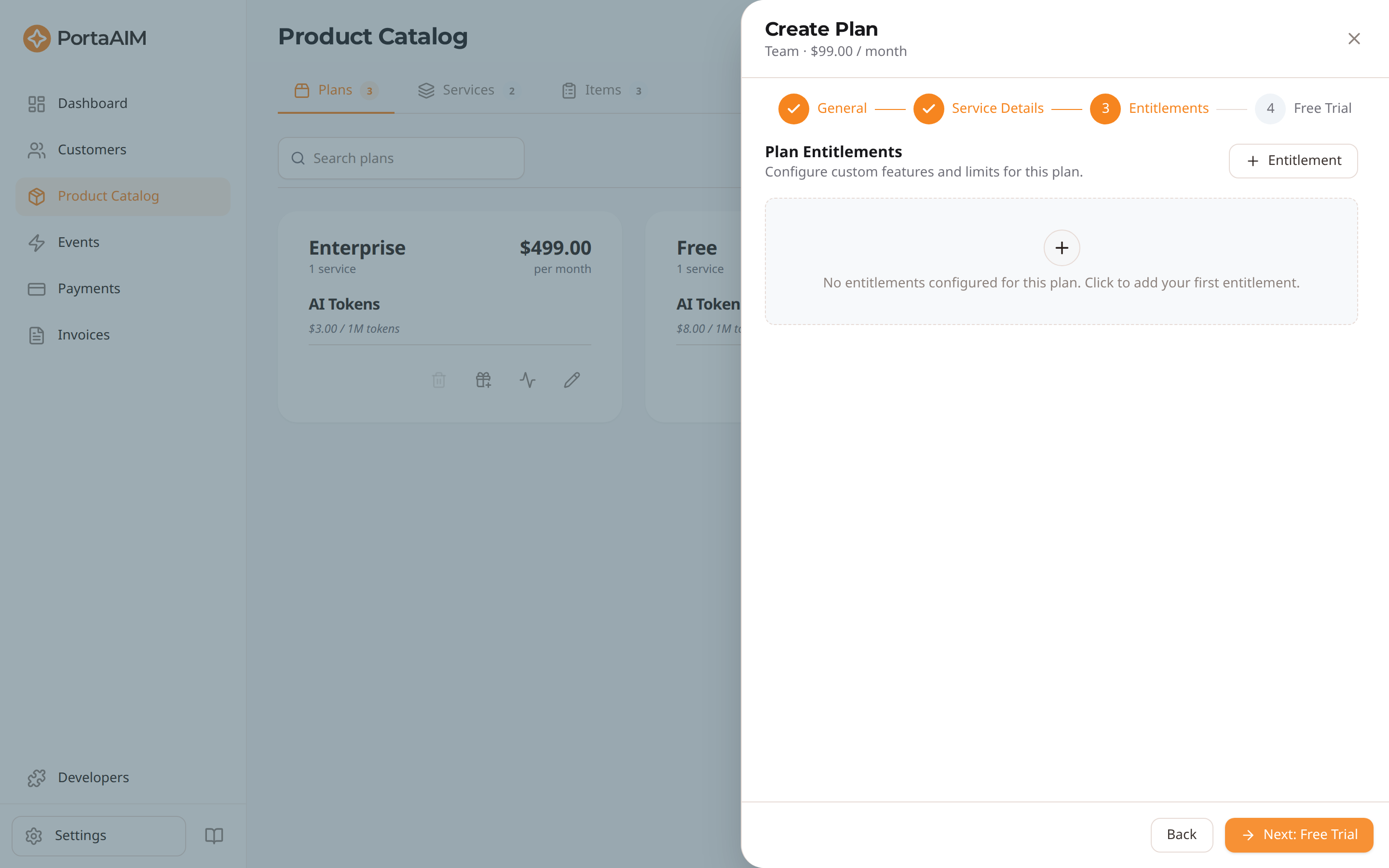
The Entitlements step — click + Entitlement to attach a typed feature flag or limit to the plan.
Adding an Entitlement to a Plan
- Open Product Catalog → Plans and either open an existing plan or click Create Plan.
- In the plan editor, switch to the Entitlements step.
- Click + Add entitlement. A popover opens with two options:
- Pick an existing entitlement from the library — this is what you'll do most of the time once your library is established.
- + New — define a brand-new entitlement inline. This adds it to the library and attaches it to this plan in one step.
Defining a New Entitlement Inline
When you click + New, you'll be asked for:
- Display name — what admins see in the UI (e.g. "Maximum Seats").
- Slug — the stable, machine-safe key your code will read (e.g.
max_seats). Lowercase letters, digits, and underscores only; immutable after creation. - Type —
boolean,number,date,datetime, orenum. Immutable after creation. - Description (optional) — for admin reference.
- Default value (optional) — the library-wide default applied when no plan or customer override exists.
- Required (optional) — if checked, the entitlement must always have a value at some layer. Requires a default to be set.
- Options — for
enumonly. Each option has avalue(immutable, used by your code) and alabel(for admin display only; can be renamed any time).
Setting the Plan-Level Value
Once an entitlement is attached, it appears as a row in the Entitlements step. Edit the value directly in the row to set the plan-level default. Leave it blank to fall back to the library default.
Editing and Removing
From the Entitlements step on a plan:
- Change the plan-level value — edit the row directly.
- Detach from this plan — click the remove icon on the row. The library definition is not deleted; other plans that use it are unaffected.
- Edit the definition itself (display name, description, library default, enum option labels, required flag) — use the edit affordance on the row. Changes apply library-wide and immediately affect every plan and customer that references this slug.
Deleting a Definition
A definition can only be deleted from the library when it has been detached from every plan that referenced it. Detach first; then deletion succeeds.
Per-Customer Overrides
Plan-level values are the right answer for everyone on a given plan. When a single customer needs different limits or feature access — without forking the plan — set a customer override.
Overrides are managed from the customer detail page, not from the plan editor:
- Open the customer in Customers.
- In the Plan card, click Plan options → Customize Plan.
- The Customize plan sheet lists every entitlement on the customer's plan. Each row shows a Plan default or Customer override badge depending on its current state.
- Edit any row to set an override, click Reset on a row to revert it to the plan default, or use Reset overrides in the sheet footer to clear them all.
- Click Save overrides to commit. Only rows you changed are sent to the billing engine.
A Customized badge appears on the customer's Plan card whenever any override is in effect. Changing the customer's plan resets every existing override — the new plan's defaults take over.
For the full walkthrough, see Managing Customers → Customizing Plan Entitlements.
Cloning Plans Across Environments
When you clone a plan from sandbox to live (or vice versa), all entitlements attached to the source plan are automatically replicated to the target environment:
- If a slug does not yet exist in the target environment, it is created and attached to the cloned plan. The per-plan default value is copied.
- If a slug already exists with the same type, the existing definition is reused and attached. The per-plan default value is copied.
- If a slug exists with a different type, the clone is rejected before any write. Resolve the conflict (rename or delete the conflicting definition in the target environment) and retry.
Tips and Gotchas
- Slug and type are immutable. Pick deliberately. If you need to change either, create a new entitlement and migrate.
- Renaming an enum option label is safe. Changing an option's
valuestring is rejected — the value is what your code keys on, and changing it would invalidate every plan default and customer override that referenced it. - Default-value changes propagate silently. Changing a library or plan default immediately affects every customer on that plan who does not have an explicit override. Confirm the impact before saving.
is_requiredrequires a default. A required entitlement with no value at any layer is rejected.- Datetime values are UTC. Send
YYYY-MM-DDTHH:MM:SSZ. Non-UTC offsets are rejected. datevalues are timezone-agnostic. They are stored verbatim asYYYY-MM-DDstrings — your application interprets the date in whatever timezone fits your business logic. If you need an exact moment in time, usedatetime.