Plans
Plans are the pricing packages your customers subscribe to. They combine subscription fees, per-usage rates, and included quotas (with optional overage) into a single offering. Multi-tier volume pricing is coming soon.
Plans Page
Navigate to Product Catalog → Plans tab. Plans are displayed as a responsive card grid.
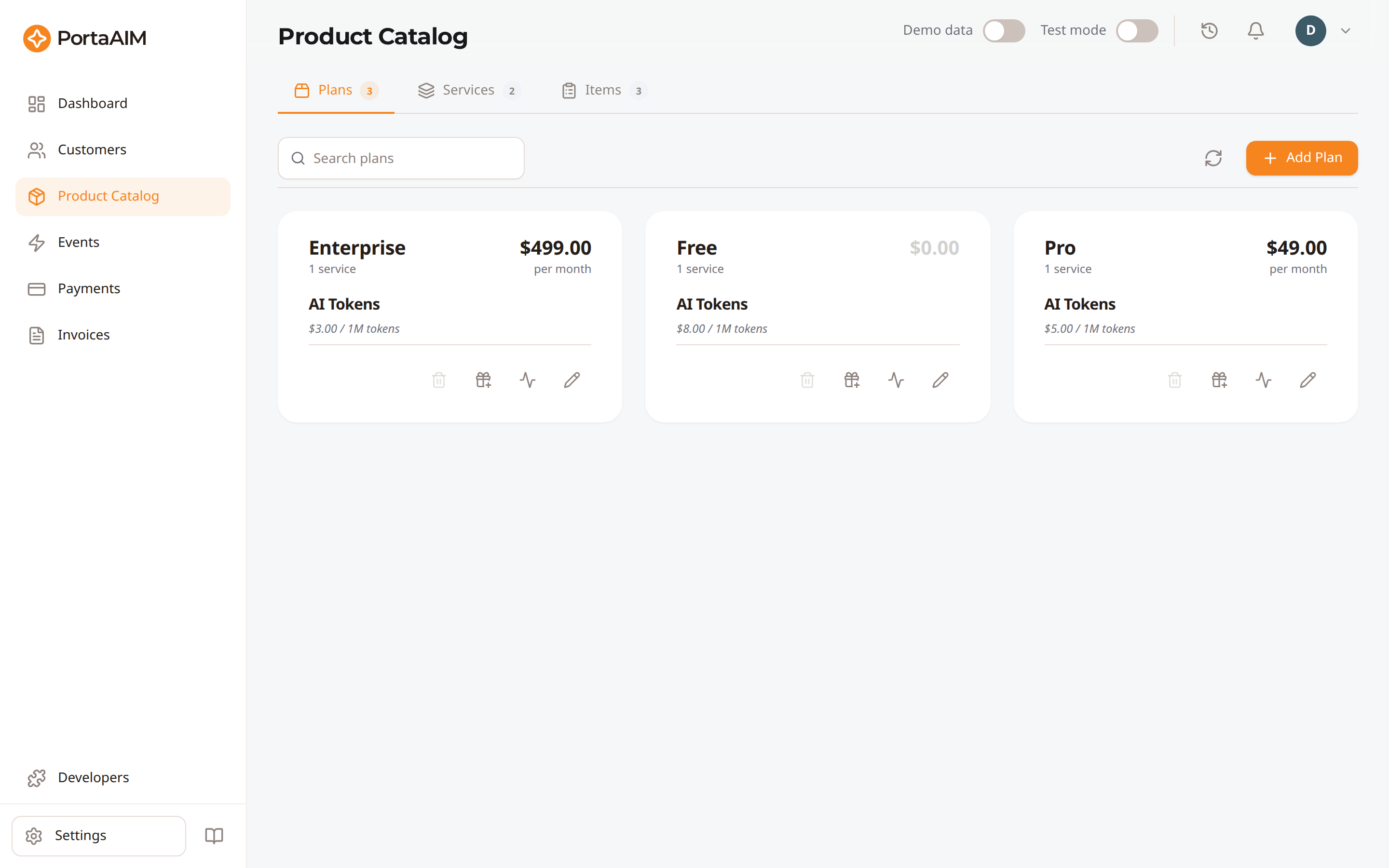
Each plan card shows its subscription fee, included services, and quick actions.
Each plan card shows:
- Plan name
- Subscription fee — the monthly price, plus the annual price (
/ yr) when the plan offers one - Number of included services
- Unused badge: appears only on a plan that can still be deleted, meaning no customer on it now and no billing history (see Deleting a Plan).
- Trial badge (if a trial variant exists)
Search and pagination
- The search box filters the full plan list by name or ID — results are not limited to the current page.
- Plans are paginated 12 per page by default, with a Per page selector (12 / 24 / 48). Your choice is remembered and follows you across sessions and devices (reset it under User Profile → Saved preferences → Pages). The Per page selector stays available even when everything already fits on one page, so you can always switch back to a smaller size; the control hides entirely only for lists shorter than the smallest size.
- The pagination controls always reflect the filtered list. Changing the search resets you to page 1 so you don't land on an empty page.
Loading and instant updates
- While each card is loading its pricing and entitlements, the services section shows skeleton placeholders — you'll never briefly see "0 services" on a real plan.
- Adding a plan: the new card appears in the grid as soon as the create request succeeds — no manual refresh needed.
- Deleting a plan: the card disappears immediately on confirmation. If the delete is rejected, the card returns and an error toast explains why.
- Plan details are cached for 10 minutes, and the list itself is cached for 1 hour. Both reset instantly on create, edit, or delete actions, so navigating away to another page and back doesn't perform unnecessary network requests.
Creating a Plan
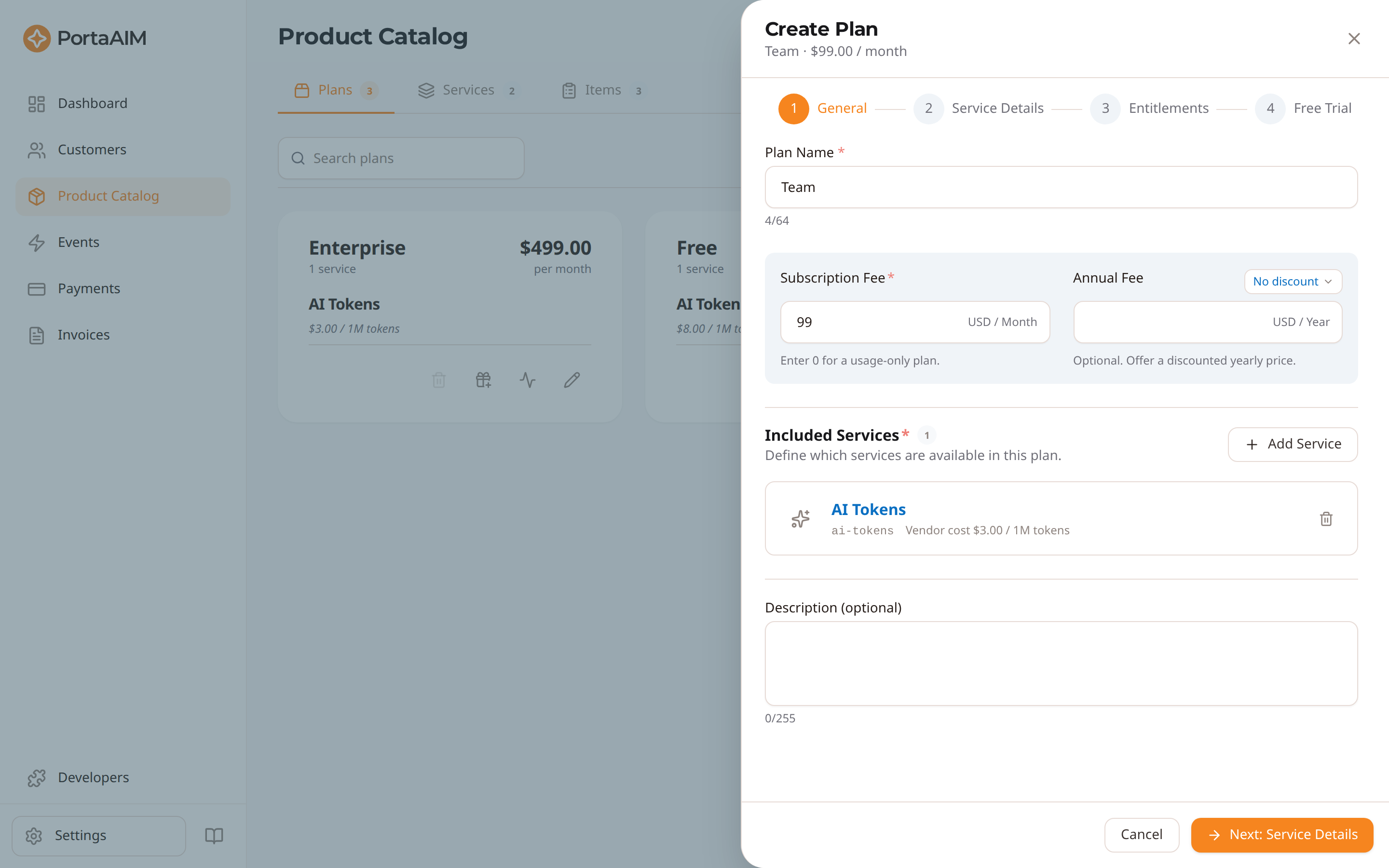
Step 1 (General): plan name, subscription/annual fee, and the services included in the plan.
- Click Create Plan
- The plan sheet opens with the following sections:
Basic Info
- Plan name: Customer-facing name (e.g., "Pro Plan")
Service Configuration
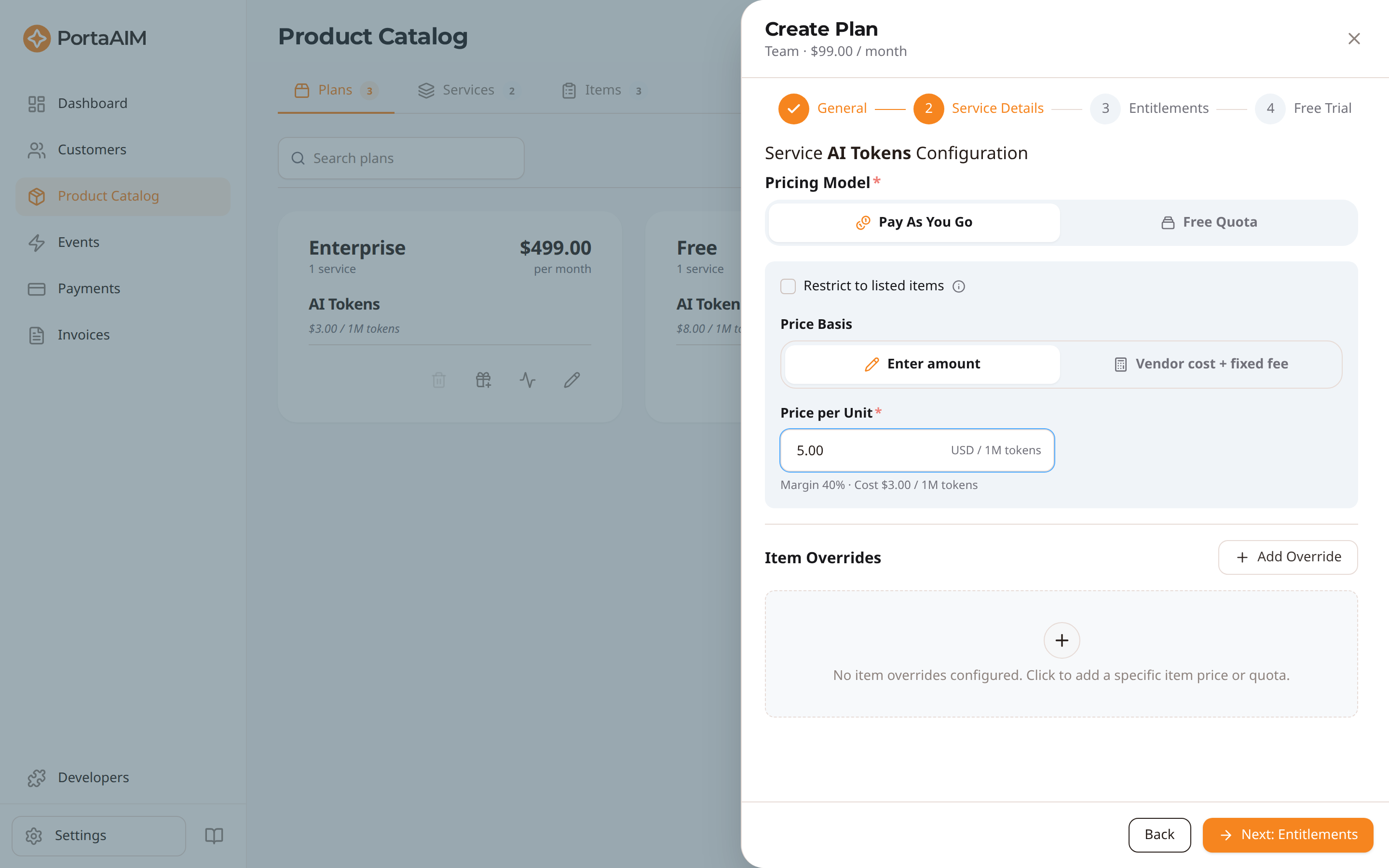
Step 2 (Service Details): pick a pricing model per service, set the price per unit (the margin vs. your vendor cost is shown), and add per-item overrides.
- Select which services are included in this plan
- For each service, choose a pricing model — there is no default, so you must consciously pick one before you can continue:
- Pay As You Go: every unit is billed at the price per unit. Checking Restrict to listed items turns the service into an allowlist: the price per unit disappears, and only the items you price under Allowed Items can be used, so usage of anything else is refused rather than billed. Price at least one item, or the service allows nothing at all. An override you add while the service is restricted starts on Pay As You Go itself, so you can price it right away
- Free Quota: a monthly allowance is included. Usage beyond it is billed at an overage rate by default; checking Block excess usage stops the service instead, once the allowance runs out. A postpaid customer with No limit as their credit limit is the exception: their usage is never stopped, and PortaAIM warns you when you assign this plan to such a customer
- Depending on the model and whether its checkbox is checked, set the price per unit (required for billed models: enter 0 for a free unit; only negative prices are rejected) and/or the monthly quota
- Under the price the panel states your vendor cost and the margin the price leaves over it. A service that records no vendor cost is priced against a cost of 0, so the whole price is margin; price it at 0 as well and the panel reads break-even.
- Instead of typing a price you can set Price Basis to Vendor cost + fixed fee and enter only the amount you add on top. The panel shows the price that resolves to, so a service costing $0.20 with a $0.10 fixed fee charges $0.30. A fixed fee of 0 is valid and means you charge exactly your cost; a blank fixed fee blocks saving, exactly like a blank price.
- The price is worked out when you save, and then stays put. If your vendor cost changes later, the plan keeps charging the old price until you open it and save again, and the panel warns you when the cost has moved.
- A service's own price is built from the service's default vendor cost. A default of 0 is a cost like any other: the price is then the fixed fee on its own, and it follows the cost as soon as you record one.
- A service's vendor cost can be lowered to zero, or its This service has a vendor cost switch turned off, while plans price it this way. Those prices move down to the fixed fee, and the review shows you which ones before you save.
- Every plan and every vendor cost is recorded in your environment's currency, which is chosen when your environment is created and cannot be changed afterwards. Both figures are labelled with it, on the form and on the saved plan alike.
- Switching between Enter amount and Vendor cost + fixed fee keeps what you had entered on each and puts it back when you return to that choice, as does moving to a pricing model that has no price or quota and back. It is only kept while the plan is open.
- The same choice is available on an item override. What the plan charges is then built on the cost that actually applies to that item: its own vendor cost, a cost recorded on a broader item code that covers it, and the service's default otherwise. A cost on
GPT-4coversGPT-4-TURBO, so an item with no cost of its own is priced from what you are really charged for it rather than from the default. Vendor cost + fixed fee is offered on every item, whatever that cost reads.- A dashed code reaches a broader one only when it is written in capitals.
gpt-4-turboreaches nothing ongpt-4. Where letter case is the only thing between an item and a cost you recorded, the panel says so and names the code holding it. An item's code cannot be changed after the item exists, and a code differing only in letter case cannot be created beside it, so the ways out are recording a cost for the item itself, or creating a new item under a capitalised code and charging on that one from then on.
- A dashed code reaches a broader one only when it is written in capitals.
- A price you left behind in Review price impact keeps its Vendor cost + fixed fee basis and goes on charging the price you decided on, even after the cost it was built from drops to 0. Change the fixed fee and that decision is void: the price is worked out from the recorded cost again.
- Pricing every item at once. Beside the Fixed Fee field, Apply to all prices the whole service in one go, so you never multiply out a rate per item. Pick + 5 / 10 / 15 / 20 / 25 %, or + the amount you typed in the field.
- A percentage is worked out against the vendor cost that applies to each item, 5% of a $2.00 item is $0.10, and of a $6.00 one $0.30. That is the cost the row shows, so an item with no cost of its own uses the one it inherits. An amount applies the same figure to every row whatever it costs.
- It reaches the items scoped to this service, including ones the plan does not price yet; any item the service records a vendor cost of its own for; and every override row already on the service. Anything else is left out. Add Override adds a global item too; an item scoped to another service has to be made global first, and a row for one cannot be saved.
- Rows that already exist keep their pricing model and their monthly quota, and only the price changes. A row you had priced by a typed amount moves to Vendor cost + fixed fee, so the amount you typed is replaced.
- New rows are added with the service's pricing model and no quota. On Free Quota + Overage each one then asks for a quota before you can save, the same as when you add an override by hand. The banner at the top names one of them; the rest show Monthly quota is required on the row itself.
- An item whose vendor cost is 0 takes a 0 fixed fee, which prices it at 0, and the row says so.
- A percentage also fills in the service's own Fixed Fee, worked out the same way against the service's own default vendor cost, so a plan is left ready to save without a separate manual step. An amount leaves it alone, since that entry is already the field's current value.
- A tick marks the entry your figures already stand at, so you can see what the service is priced at without scrolling the rows. It is read off the amounts, not remembered from the click: retype one row's fee, edit the service's own, or add an item to the service, and the tick goes, because applying that entry again would now change something.
- A line under the field says what the last apply did: how many items it priced, and how many of those are new to the list. Its counts follow the list: remove one of those items and the figures drop, add one by hand and they do not. A row it added is marked Added, and any field whose fixed fee it replaced, the service's own included, says what that fee was, so you can type it back. None of this is saved with the plan; it describes your last click, and editing a price clears that row's note.
- A row pricing an item scoped to another service says so, and nothing removes it for you. Such a row now blocks the save: an item can be priced only on the service it is scoped to, or once it is global, so remove the row or make the item global.
- If a price or fee looks unusually high, an amber "double-check the amount" note appears — it's a guard against typos and never blocks saving
- An item priced per dimension keeps its dimensions together under Item Overrides as one card,
headed by the item. Its Quota per dimension / One shared quota switch decides whether each
dimension gets its own included quota or they all draw on a single one: ten shared units are ten
whichever dimension spends them, not ten each.
- Under One shared quota you set the amount once and choose what happens past it: charge each dimension at its own price, or stop the service. Each dimension then shows only its price, since a dimension cannot also keep a quota of its own.
- The card lists the charge codes the allowance covers. Add or remove a dimension later and the allowance keeps covering the codes it was built with, so an amber note appears with Review coverage, which shows what is covered against what the item prices now, names every plan granting that allowance, and brings it up to date for all of them at once. A dimension only counts toward the shared quota in a plan that prices it, so the review also lists, plan by plan, any dimension a plan doesn't price. Applying gives it the price it inherits as its own: the plan's price for a broader item that covers it, or otherwise the plan's default price for the service. A dimension whose current price follows vendor cost is left for you to price, and the review says so. Customers keep the units they have left. Changing an item's dimensions from the item editor offers the same review straight away.
- A trash icon beside the card's own controls removes every dimension's pricing at once, the same way removing a single row does, and a brief note above the list names the model it cleared. It only appears once the model has more than one priced dimension; a single dimension keeps its own row's remove control instead, and like any other edit here it is only kept once you save the plan.
- For per-item pricing, add item overrides under a service to set a specific price or quota for individual items. An item override's margin is measured against the cost that applies to that item, its own or one covering it, so it reflects what that particular item costs you, while the service-level margin uses the service's default cost and notes underneath how many items carry a cost of their own
- Hover the info icon beside that note to see which items those are and what each costs. The Add Override list marks every item a recorded cost covers with vendor cost, or vendor cost on 2 of 3 where an item's cost covers only some of its dimensions. A cost covering the item through a broader code counts.
- Multi-tier volume pricing is coming soon
Subscription Fee
- Subscription Fee is required — there is no default. Enter the recurring monthly amount, or enter
0for a usage-only plan with no subscription fee. The field starts blank so the amount is always a conscious choice (a blank field is not treated as $0). - Annual Fee (optional) — offer a discounted yearly price; leave it blank for a monthly-only plan. Type the amount, or fill it in from the discount dropdown beside the field:
- Pick a preset (10% / 20% / 30% / 33% / 50% off) and the annual price is calculated from the subscription fee as it stands (e.g. a $100/mo plan at 20% off → $960/year). Changing the subscription fee afterwards does not change the annual price: the helper line beneath re-measures the same $960 against the new fee: a bigger discount if you raised it, a smaller one if you lowered it, and a warning if the year now costs more than twelve months, which the save then refuses. Pick a preset again to re-price the year.
- The dropdown reads back what the two amounts say: a preset when they match one, Custom when they don't (there is no Custom to pick — a price becomes custom by being typed), No discount when there is no annual price.
- No discount clears the annual price, making the plan monthly only.
- An annual price cannot exceed twelve subscription fees. PortaAIM refuses the save and names the ceiling. A plan with no subscription fee therefore cannot carry an annual price at all: set a subscription fee of at least a twelfth of the annual price, or leave the annual price blank. A plan saved this way before the rule stays editable in every other respect, its name and services included; the moment you change either amount, the pair has to satisfy the ceiling.
- When an annual price is set, customers choose Monthly or Annual when they're assigned to the plan; the annual term bills them for the year up front as a 12-month commitment. Where a plan has an annual price and no subscription fee, the monthly term is shown but cannot be picked, because it charges nothing.
- Click Save
Editing a Plan
- Click the edit action on a plan card
- Modify pricing, services, or subscription fee
- Save
Changes affect all customers on this plan going forward. Existing charges for the current billing period are not retroactively changed.
Entitlements
The plan editor includes an Entitlements step where you can attach typed feature flags and limits (e.g. max_seats, feature_tier, advanced_analytics) to the plan. Your application then decides what to expose to each customer based on their effective values. See the Entitlements guide for the workflow and the Entitlements concept for the model.
Viewing Plan Details
Click a plan card to open the read-only detail view, showing all pricing configuration at a glance.
Each price derived from a vendor cost says so, and shows the cost it is measured against — the item's own where it records one, a cost recorded on a broader item code covering it otherwise, and the service's default where neither applies. A cost from a broader code names that code, so it does not read as contradicting the service's own cost above it. If that cost has moved since the price was worked out, the view says which figure the price was built from and what the cost is now. Rebuilding it is offered from the service card, under Changing a vendor cost.
Deleting a Plan
You can delete a plan in two places:
- From a plan card — click the delete action, then confirm.
- From the plan editor — open the plan and click Delete in the editor's footer, then confirm.
Either way, the Delete action is disabled with a tooltip explaining why, decided before you click from what the billing backend reports about the plan.
If the plan has a linked free trial, one delete removes the plan and the trial together, so you do not need to remove the trial separately. The trial is removed first, so a delete that is interrupted part way never leaves the trial behind on its own.
A delete that is interrupted is safe to repeat. If your browser gives up waiting for the answer, the plan is still deleted, and deleting it again simply confirms that rather than reporting that the plan does not exist. When an attempt does end in an error, PortaAIM checks whether the plan actually went, and reports it as deleted if it did. The list is refreshed after a failed attempt either way, so what you see on screen is what actually exists.
You cannot delete a plan that has active customers assigned to it, and moving those customers to another plan does not make it deletable: once a plan has been assigned to a customer it keeps billing history, which the billing backend retains for record-keeping, so it can no longer be removed. To retire such a plan, stop offering it (you can rename it for clarity) rather than deleting it. The same applies to the linked free trial: because the plan and its trial are deleted together, a trial that has been assigned to a customer holds the plan too. Such a plan's Delete is disabled too, and its tooltip names the free trial as what holds it.
Plan Cards
The grid display gives you a quick visual overview:
- Plan name prominently displayed
- Price and billing frequency
- Service count and key features
- Unused badge if the plan can still be deleted
- Trial badge if a trial variant is available
- Actions: View, Edit, Delete (see Deleting a Plan for when Delete is disabled)