Events
The Events page shows all usage events processed by the billing engine — the raw audit trail of service consumption.
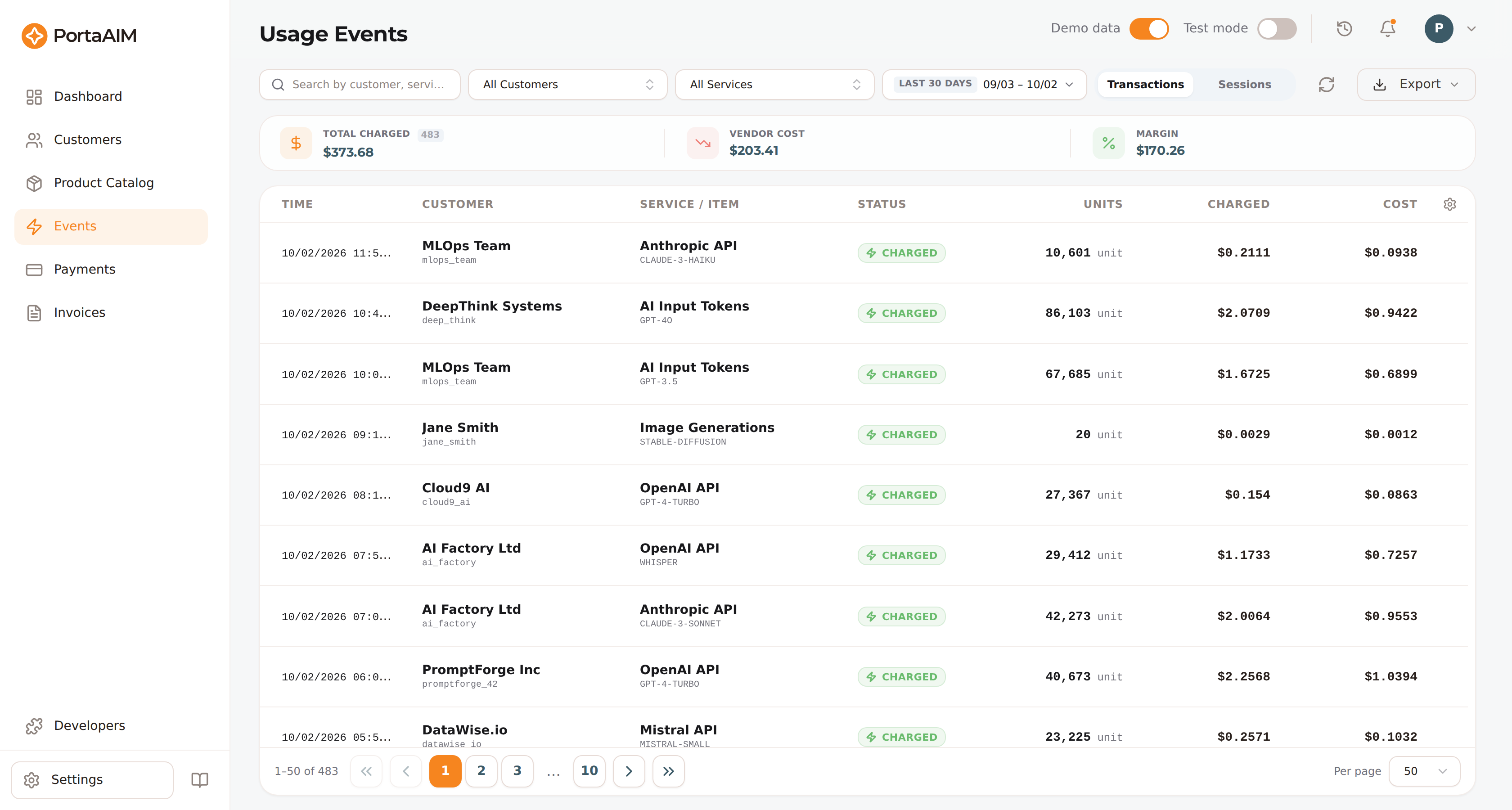
The Transactions view: every usage event with its customer, service/item, status, quantity, charge, and cost.
Events Page
Navigate to Events in the sidebar.
Events Table
Each event row shows:
- Timestamp
- Customer name
- Service and item. When no display name is on record the row shows the service code instead, in a monospaced font; an event that named no service at all shows the same placeholder dash as an empty amount
- Status, plus a tag when the event needs one: In quota (charged in full at no cost), Partial (fewer units granted than requested), Over grant (more units reported than the reservation covered), Interim (usage reported part-way through a session) or Retry (a repeat of an earlier request, answered with that request's result). Over grant is informational: the charge went through and billed in full. The reservation grows only when a session asks for more units and the billing engine grants them, so a long session that keeps extending its reservation is not tagged, while one that keeps reporting usage without extending it is
- Units — on an authorization, both figures: the units granted and, after the slash, the units requested. They differ routinely, and a short grant is a success, not a refusal, so the row shows the pair rather than a single number.
∞means an uncapped grant and—means nothing was granted (refused, or no reply yet). A charge pairs too: the units it reported and, after the slash, the reservation it was measured against. You can then see whether the session stayed inside its reservation without opening the authorization row. A single figure means there was no reservation to name: the charge was sent without one, it ran against an uncapped grant, or it predates this figure. - Charged and Cost:
—rather than a zero when nothing was rated, because a rated zero (free usage) and an unrated event are not the same thing
Interim and Retry both mean the figures on the row are not this call's own contribution. An interim report carries the session's running total, so only the latest report of a reservation counts towards the totals above the table, and that latest one still counts while the session is open. A retry repeats the original's amount and counts towards no money total. A request your integration resends under the same idempotency_key adds one such row for each event the original request recorded, every time it is resent, in the session of the request it repeats.
Click any row to open the event detail panel. The panel slides in immediately with a brief loading spinner, then fills in the metrics, metadata, and raw event payload — this staged render keeps the slide-in animation smooth even for events with large metadata blobs.
Above the table, a totals row shows Total Charged, Vendor Cost, and Margin. These totals cover every event matching your current filters, not just the rows visible on the page. Cost and Margin are shown only when at least one matching event reports a cost. An authorize-only or release-only filter has none. A note appears under the tiles in either of two cases: the read had to cap itself in a very large window, or rows tagged Interim or Retry carried an amount that was left out. In the second case the note says how many charges are the reason, and the rows on the page do not add up to the tiles.
Sessions view
Toggle Sessions (next to Transactions) to group related events into logical sessions. Events that share a session — for example the several LLM calls behind one "CV review" — are rolled up into a single row showing the total revenue, cost, and margin for that session. Expand a row to see its individual events. Each one shows the same units pair and the same badges it shows in the Transactions view.
Above the table, a totals row shows Total Revenue, Vendor Cost, and Margin, one level up from the per-session figures in the table below it. These totals cover every session matching your current filters, not just the rows visible on the page. Cost and Margin are shown only when at least one matching session reports a cost. A note appears under the tiles when the read had to cap itself in a very large window.
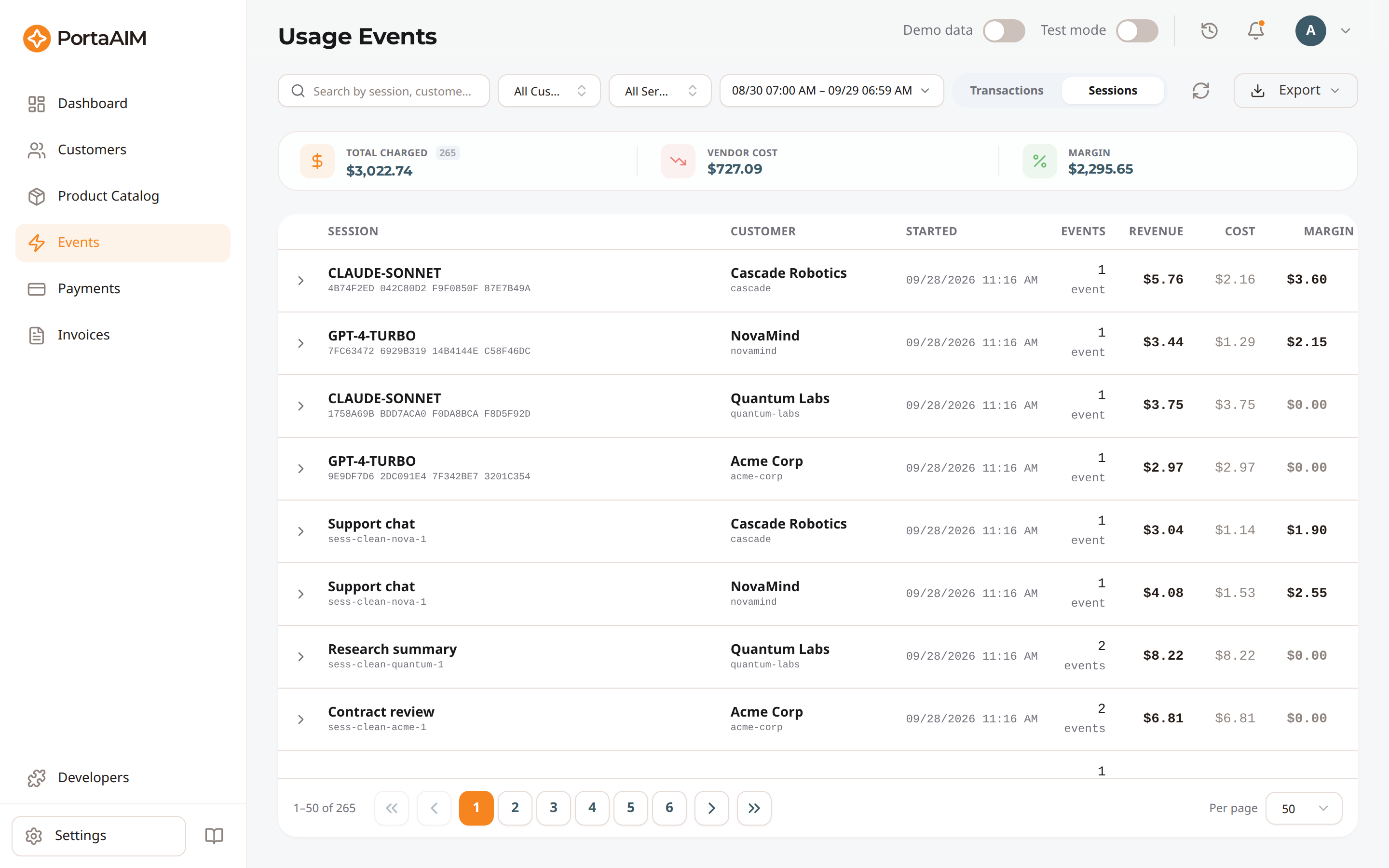
The Sessions view groups related charges — each row shows the session's events, revenue, cost, and margin.
Filtering
- Search: Matches customer name, customer external ID, service name/code, and item code. With a customer picked, only the service and item fields are searched. Applied server-side, so it covers every matching event, not just the current page.
- Customer filter: Lists every customer in your tenant, not only those that appear in recent events. Hover an option to see the full name and customer ID; type either (even a fragment of the ID) to narrow the list. Selecting one re-queries the server.
- Service filter: Re-queries the server for that service code.
All three work the same way in the Sessions view, and narrow the totals above the list as well as the list itself. Two differences are worth knowing there:
- Search matches the session label, the session ID, the customer external ID and the service code — not the customer and service names, which a session row does not carry. The placeholder tells you which view you are in. Use the customer and service filters to narrow by name.
- Service filter keeps each matching session whole. A session that also billed other services still shows all of its own revenue, cost and margin, so the figures agree with the session's own detail panel.
- Time range: Narrows events by
created_at, applied server-side so it covers the whole matching set. The 24h, 7d and 30d shortcuts are rolling windows ending at the current moment — "24h" means the last 24 hours, not today so far. MTD runs from the 1st of the current month. For a live integration, open Range and pick Last 5 / 10 / 30 minutes, or set an exact start and end time.
Time ranges — and every date and time shown in PortaAIM — follow the timezone in your user profile, not your computer's. If the two differ, PortaAIM tells you so in the notifications panel and next to the timezone field in your profile.
Pagination & loading
The list is paginated server-side: each page is fetched on demand as you navigate, so all matching events are reachable — not just the most recent 200. Filters, time range and search all apply server-side, and the displayed range/total reflects the full matching set. Use the page-size selector to change how many rows show per page; the Refresh button refetches without leaving the page.
Exporting Events
You can export the raw usage event logs using the Export button in the search toolbar:
- Export as CSV: Generates a spreadsheet containing all event details (transaction ID, customer, service/item, requested, granted and reserved units, charge, cost, status, session, and human-friendly timestamps). The Interim and Retry columns mark rows whose figures the totals on screen leave out, so summing Charged Amount over every row counts some usage more than once.
- Export as JSON: Generates a raw JSON file containing complete database records, which is extremely useful for offline log auditing or integration scripts.
Customizing the table
Click the gear icon at the right end of the column headers to open the Table settings side sheet, where you can:
- Reorder columns by dragging the handle next to each column.
- Show or hide columns with the checkbox.
- Set column width to Auto (default), Fixed pixels, or a Percentage of the table.
- Choose Rows per page (10, 25, 50, 100, or 200).
- Toggle Fit table to viewport (default on for this list). When on, the table is sized to fit the visible viewport: only the rows scroll inside the table, so the search and filter row, the column headers and the pagination bar stay on screen, and horizontal scrolling slides header and body together. Turn it off to let the table render at its natural full height and scroll the whole page instead.
Changes apply instantly and are saved to your account per table, so they follow you to any browser you sign in from. Use Reset to defaults in the footer to start over. The same gear icon and side sheet are available on every data table in PortaAIM (Invoices, Payments, Customers, etc.).
Event Statuses
| Status | Description |
|---|---|
| Authorized | Units reserved for a session; nothing charged yet |
| Charged | Successfully rated and billed |
| Released | The reservation was released without a final charge |
| In Flight | Sent to the billing backend, which has not replied yet |
| Failed | The billing backend refused it (open the event for the reason) |
| Unknown | The billing backend never confirmed the event, so whether it was charged is not known. Not a synonym for Failed |
| Skipped | An older duplicate settlement answered from a cached reply — no second charge |
Two of these are easy to misread. In Flight and Unknown both mean no confirmed outcome, so neither is proof that nothing was charged; and an event that shows a zero charge is only free usage when it also carries the In quota tag.
Event Lifecycle
Submitted → In Flight → Charged
                      → Authorized → Charged
                                   → Released (if cancelled)
                      → Failed  (refused)
                      → Unknown (never confirmed)
Session-Based Events
For services billed by duration (e.g., API sessions, streaming):
- Authorize: Lock resources at session start (reserves balance)
- Charge: Apply final charge at session end based on actual usage
- Unlock: Release the authorization if the session is cancelled
Immediate Events
For services billed per-unit (e.g., API calls, token consumption):
- Charge: Single event submitted with the quantity consumed
Event Details
Click an event to see:
- Full event metadata
- Service and item information
- Quantity and calculated charge
- Processing timestamps
- Error details (for failed events)
Using Events for Debugging
Events are your primary tool for debugging billing issues:
- Missing charges? Search for the customer and check if events were submitted
- Wrong amount? Check the event's quantity and the plan's pricing for that service/item
- Failed events? Open the event detail to see the error message
- Duplicate charges? Check for duplicate event submissions by timestamp
The Events page shows data from the PortaAIM event store. For real-time debugging, also check the Charging API response codes.
Sessions
Some workloads bill as a single outcome even though they consume several services under the hood — a résumé review that runs OCR, an LLM, and compute; or a voice-AI call that uses speech-to-text, text-to-speech, and an LLM. Each of those is charged separately, so the flat Events list can't tell you what one review or one call actually cost or earned.
The Sessions toggle (top-right of the Events page) groups them. Send the same session_id on every charge that belongs to one unit of work (see the Charging API) and PortaAIM rolls them into one row showing:
- Revenue — total charged to your customer across the session
- Cost — total vendor/internal cost across the session
- Margin — revenue minus cost
When any of a row's charges failed, or is still in flight awaiting a reply from the billing backend, or holding a record the backend never confirmed, the row says so under its event count. A refused charge is recorded like any other, so an attempt the plan does not permit appears as a session with nothing charged, and these counts are what tell it apart from a session whose usage a quota covered.
Click a session row to expand it and see every underlying charge (LLM, OCR, compute, the outcome charge…), or open its detail panel for the full per-item breakdown. Each charge remains its own transaction, so totals are summed once and stay accurate. Once a session holds more than a handful of events, its breakdown paginates in both the expanded row and the detail panel.
The row is labelled with the session_id you sent, so a meaningful one (e.g. tech_review_4711) names the session for you. A session whose charges arrived without one is labelled from its billable "outcome" charge instead.
A session_id may be reused: a session is identified by the customer and the id together, so two customers sending the same label never merge into one row. Reading one such session through the API needs both halves. If you ask for a shared id without naming the customer, the API refuses and names the customers that share it. Repeat the request for the one you meant. For more information, see Get a single session.