Items
Items let you set different prices for different things within the same service. You only need items when a single service contains multiple vendor models, tiers, or variants that should be priced differently. If everything in a service costs the same, you don't need items.
See What Is an Item? for a detailed explanation.
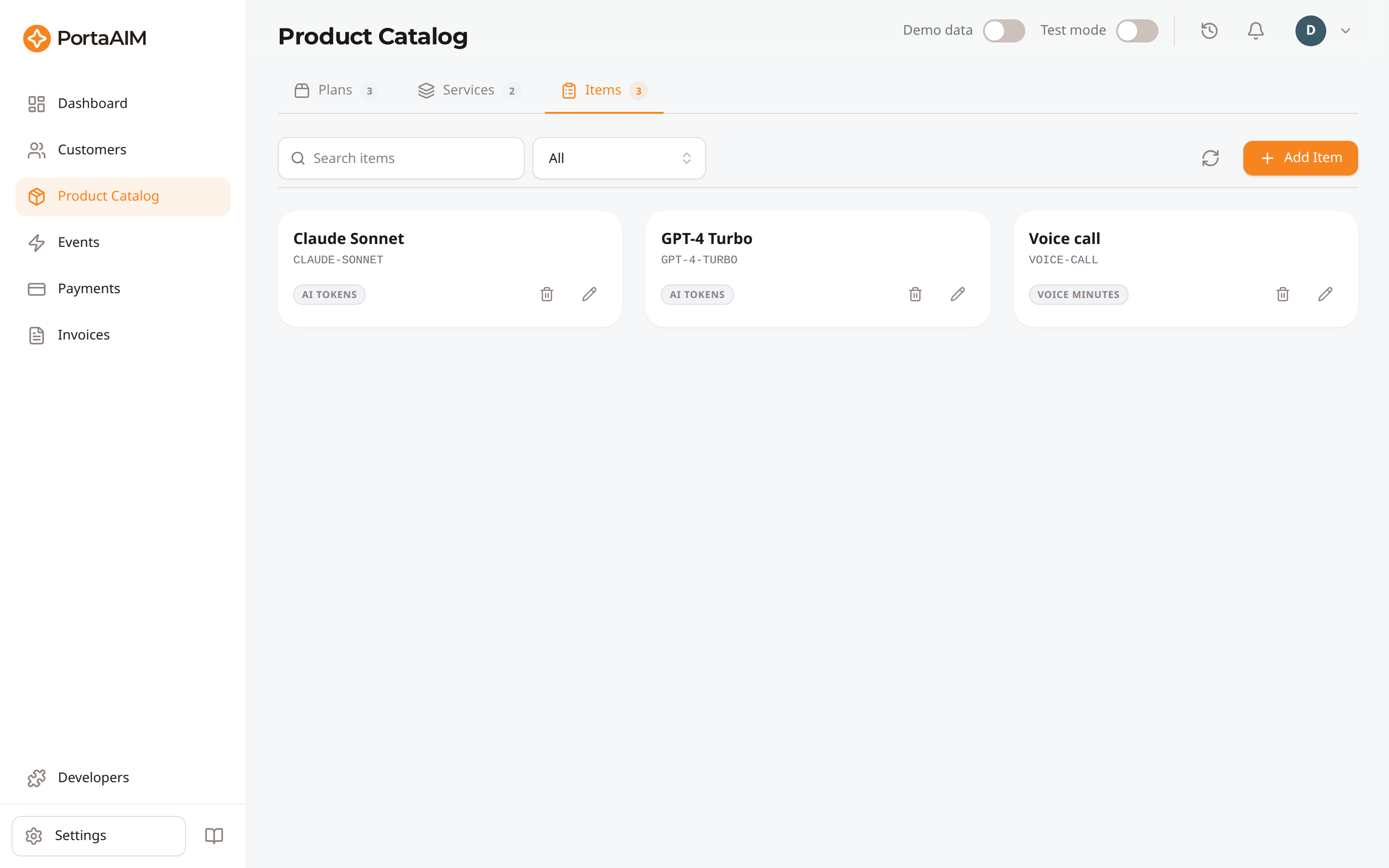
The Items tab — price variants within a service (e.g. GPT-4 Turbo vs. Claude Sonnet under "AI Tokens").
Items Page
Navigate to Product Catalog → Items tab. Items are displayed as cards in a grid.
Filtering
- All Items: Show all items
- Global: Items available for any service
- Services: Pick a service to show only the items scoped to it
Use the search bar to find items by name or ID.
Creating an Item
- Click Create Item
- Fill in:
| Field | Description | Constraints | Example |
|---|---|---|---|
| Name | Display name | Max 64 characters | "Gemini 3 Pro" |
| ID | Identifier used in API calls and charging requests | Letters, digits, dashes (-), underscores (_) only. Max 16 characters. No spaces. | GEMINI-3-PRO |
| Scope | Global or scoped to a specific service | — | Service: "LLM Tokens" |
- Click Save
Global vs. Service-Bound Items
- Global items: Available across all services — use for generic items like "Standard API Call"
- Service-bound items: Scoped to a specific service — use for vendor-specific items like "GEMINI-3-PRO" under a "Google AI" service
Most SaaS businesses should use service-bound items. This keeps your catalog organized and ensures items appear in the right context when configuring pricing.
Editing an Item
Click the item card to open the edit form. You can change the name and scope. Once an item is scoped to a service, you can only release it to Global from here, not move it straight to a different service; make it Global first, then bind it to the new one.
If another service still holds a per-item vendor cost for the item, the new binding is refused and the message names that service. Remove the cost there first, then bind the item. This keeps a service from pricing an item that no longer belongs to it, which would leave a row you could delete but not edit.
Deleting an Item
Click delete on the item card and confirm. Deleting an item releases its charge code, so you can create a new item under the same code later.
An item you have configured in a plan is the exception. The billing backend keeps that item's pricing history, so it holds the code and the item cannot be deleted. Nothing you can do from here changes that: removing the price from the plan does not help, and neither does deleting the plan or the service. The delete on such a card is greyed out, and its tooltip names the code and asks you to give a replacement a different item ID.
Every pricing row claims the code, so this is not only about items you priced. A Prohibited row claims it, and so does a row that grants a quota and names no price. A service's per-item vendor cost override claims it too. Treat a code as spent once you have configured the item anywhere.
A delete can also go through while the billing backend keeps the charge code held. The answer says so and names the code, and the item is gone either way.
Item Pricing
Item pricing is set at the plan level, not on the item itself. The item is just a definition — the price depends on which plan the customer is on.
For example, "GEMINI-3-PRO" might cost:
- $5.00/1M tokens on the Starter plan
- $4.00/1M tokens on the Pro plan
- $3.00/1M tokens on the Enterprise plan
See Plans for how to configure item pricing within a plan.