Services
Services represent what your SaaS sells or consumes — cloud compute, storage, API calls, AI tokens, images generated. See Services & Items concepts for a deeper explanation.
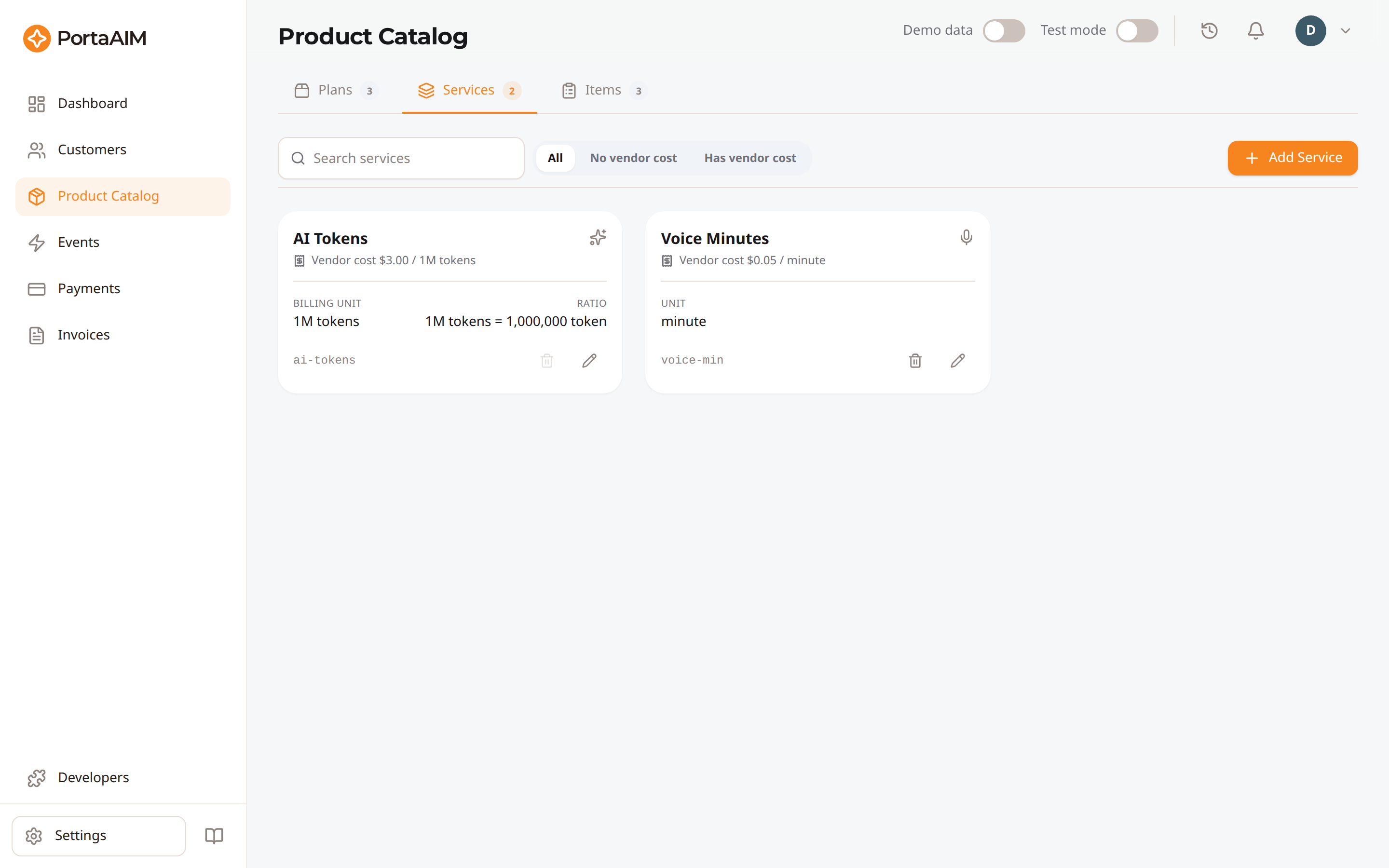
The Services tab — each service defines a unit of consumption and (optionally) your vendor cost.
The Service screen optionally captures your vendor cost — what it costs you to deliver the service. Customer prices live on Plans: each Plan that includes a service sets its own price per unit. A Service never has a customer-facing price by itself.
Services Page
Navigate to Product Catalog → Services. The page shows your services as cards in a grid.
Filtering
- All: every service
- No vendor cost: services with no vendor cost recorded
- Has vendor cost: services that record a vendor cost (per-unit default and/or per-item overrides)
Whether customers pay for a service — and how — is configured per Plan, not at the service level.
Use the search bar to filter by service name or slug.
Creating a Service
Click Add Service to open the create sidesheet. The whole form is a single flat scroll — no wizard, no tabs. Sections are separated by thin horizontal delimiters.
Template (optional)
A combobox at the top with an ⓘ tooltip. Picking a template (e.g. AI: Input tokens (mTok), Compute: GPU hours) pre-fills name, unit, billing unit, and conversion ratio. Pick Custom if no template fits.
Basics
| Field | Required | Description |
|---|---|---|
| Service Name | ✓ | Display name (e.g., "LLM Tokens"). |
| Slug | ✓ | Unique alphanumeric ID used in API calls (e.g., ai-tokens). Auto-derived from the name unless you edit it. |
Measurement
| Field | Required | Description |
|---|---|---|
| Unit | ✓ | The smallest thing you measure (e.g., token, byte, image). At most 16 characters. |
| Separate billing unit | – | Check this when invoiced units differ from measured units. The ⓘ icon explains with an example. |
| Billing Unit | ✓ (when separate) | The unit shown on invoices (e.g., 1M tokens, GB, kWh). At most 16 characters. Appears in the left column once Separate billing is on. |
| Conversion Ratio | ✓ (when separate) | How many measured units make one billing unit. Appears in the right column once Billing Unit has a value. Set it carefully: it cannot change after the service is created. |
Auto-detected conversion ratios
For common unit pairs the conversion ratio is filled in for you. A small ✓ Auto-detected label appears next to the field along with a Clear link if you want to enter your own number.
Pairs we recognise:
- Bytes (binary) —
byte ↔ KB / MB / GB / TB / PB, plus chained combos likeMB → GB - Time —
ms ↔ second,second ↔ minute / hour / day,minute ↔ hour / day,hour ↔ day - Power & energy —
W ↔ kW / MW,Wh ↔ kWh / MWh - Length & mass —
meter ↔ kilometer,gram ↔ kilogram - Count scaling —
X ↔ 1K X / 1M X / 1B X / 1T X(e.g.,token ↔ 1M tokens,request ↔ 1B requests) - Bare scale suffix — billing unit of just
K,M,B,T(or1K,1M,1B,1T) applied to any measurement unit
After both units are set and the ratio is filled, a live preview confirms the configuration in plain English (e.g., "You record usage in tokens. Customers are billed per 1M tokens. 1M tokens = 1,000,000 tokens.").
Vendor cost
Each service either records a vendor cost or it doesn't. This is the This service has a vendor cost switch:
- Off (default, "No vendor cost"): no vendor cost is recorded. Use it for revenue-only charges like setup fees, subscription add-ons, or anything you deliver in-house. The service is still in your cost and margin figures: it saves with
default_cost_per_unit = 0, and its revenue counts there as all margin. - On ("Has vendor cost") — records your vendor cost per unit — what it costs you to deliver the service. Reveals:
- Default vendor cost — your per-unit cost to deliver. Leave 0 where the cost lives on the items instead; a 0 default with no item costs records no vendor cost at all.
- Per-item vendor cost overrides — Optional. Override the default cost for specific items. Use when one item costs more or less than the default.
Whether customers pay (and how) is configured per Plan via the Pricing Model selector — not at the service level. A "cost-only" service can still be billed to customers if you set a price in the Plan; a "free" service can still be charged for if the Plan defines a price.
The form re-arranges immediately — no need to save to see the effect.
Click Create Service.
Editing a Service
Open an existing service card. Same flat form as creation, with one constraint:
- Slug is immutable after creation.
- Conversion Ratio is immutable too, and so is the Separate billing unit checkbox that governs it. Both are shown but cannot be changed: prices are set per billing unit and usage is recorded through the ratio, so moving it re-values what is already recorded. To bill on a different unit, create a new service.
- Name, Unit, Billing Unit, the vendor-cost switch, Default vendor cost, and Per-Item Overrides are all editable. Switching a service from No vendor cost to Has vendor cost (or back) just changes the recorded cost: clearing the default cost and any item overrides removes the vendor cost, and setting a non-zero cost adds one.
- You can take the vendor cost away while a Plan prices this service as vendor cost plus a fixed fee. The review lists every price the drop would move, each offering to follow the cost down to the fixed fee on its own, and you decide price by price as with any other cost change. Recording a cost again brings the same offer the other way.
Unit and Billing Unit are labels: renaming them changes what your Plans and invoices say, not what is charged, because the arithmetic is the Conversion Ratio and it stays as it is. After a rename, read the live preview under the fields and check that it still describes what you meant. Where the unit you typed reads as a different scale, a warning replaces that preview and names both numbers, but PortaAIM cannot recognise every unit, so the preview is the thing to trust. Review your Plans after saving.
Changing a vendor cost
A Plan can price this service as vendor cost plus a fixed fee rather than at a typed amount. That price is worked out once, when the Plan is saved, so changing the cost here does not move it on its own — which is why a cost change asks you first.
Review price impact opens before anything is written. It lists every Plan price this change would move, grouped by the cost that moved, and for each one: what it charges today, what its own rule would charge from the new cost, and the margin it lands on. The service's own cost comes first, then each item by code, with one item's dimensions together; the Plans under each cost read by name. Nothing has been saved at this point, so Cancel leaves both the cost and the prices exactly as they were, with your edits still in the form.
Each price carries its own tick box, because moving every Plan is not always what you want:
- Ticked — the price follows the new cost. This is how the review opens, since following the cost is what the rule you configured says to do.
- Unticked — the price stays where it is. The row shows the margin it will earn instead, and the decision is remembered: that price stops being reported as unreviewed until the cost moves again. This is the answer for a Plan sold on a price you cannot raise yet, or a cut you would rather keep.
Untick everything and the button reads Save cost only — that is how you record a cost without touching any price. A warning appears if a price you are leaving behind would end up selling below the new cost, which is the one outcome worth catching before you confirm.
Confirming saves the cost and settles the prices as one action, then reports what became of each. Anything that could not be rebuilt stays listed on the service card, so running the review again from there finishes it.
A review covering hundreds of prices is sent in several parts, and a counter tells you how many the server has answered for. If it is still working when the app stops waiting, you are told so rather than told it failed: nothing is lost, the server finishes on its own, and reopening Review a few minutes later shows where it got to. The same is true of a part that fails outright. What already settled is named either way, and whatever is left stays listed on the card for a further run.
Open Review on a service whose prices are all up to date and it says so, with nothing to confirm.
A price whose applicable cost drops to zero is rebuilt like any other. It then charges the fixed fee on its own, which is what a cost of zero plus your fixed fee comes to, and it follows the cost back up when you record one.
The card counts only the prices nobody has looked at. Once all of them are decided it stops asking for attention and says how many were left behind on purpose — still a way back in, if you change your mind or the cost moves again.
Renaming the service (the Name field) is safe by comparison: it only changes the display label shown throughout the app. It never affects charging, API calls, or how historical usage records are attributed — those all key off the immutable Slug.
Plans tab
When you open a service for editing, the editor has two tabs:
- Settings — the service's name, units, and cost configuration.
- Plans — the Plans that include this service, with a count badge. Click any Plan in the list to open it in a side panel and edit its pricing without leaving the service. This is the quickest way to find and adjust the Plans affected by a service change.
Deleting a Service
You can delete a service from the trash icon on the service card, or from the Delete button in the service editor's footer. Either way, confirm in the dialog.
A service that anything still uses cannot be deleted. The delete control is disabled and its tooltip names the reason, whatever the reason is: a Plan pricing it, a quota, or something else. When a Plan is what holds it, the tooltip says which Plan; use the editor's Plans tab to open each one and remove the service from it, and the delete control becomes available once none is left.
Some holders are not Plans you can open, and a free trial you have turned off is the common one: it keeps the services it was given. So is a quota someone has already drawn on, which is kept for the record, and pricing left outside any Plan after a Plan change that did not finish. In each of those the Plans tab has nothing to list, and says so together with the reason the delete is blocked rather than reporting that no Plan uses the service. There is nothing to edit in those cases; contact support to have it cleared. A quota configuration that no longer grants the service to anyone does not block the delete.
Service Cards
Each card on the Services page shows:
- Name and slug
- Unit / billing unit & ratio
- Cost badge —
No vendor cost(no vendor cost recorded) orHas vendor cost(vendor cost recorded)
FAQ
Why can't I set a customer price on the Service? By design — customer pricing is per-Plan, not per-Service. The same service can carry different prices in different Plans. Add this service to a Plan to set what customers see.
What's the difference between "No vendor cost" and "Has vendor cost"? "Has vendor cost" services record your vendor cost per unit; "No vendor cost" services have no vendor cost recorded. Both can still be billed to customers — that's a Plan-level decision. Both appear in your cost and margin figures, the second at a cost of zero.
Can I switch a service between "No vendor cost" and "Has vendor cost" later? Yes, flip the This service has a vendor cost switch on the edit form and save. Turning it on lets you enter a default cost (and per-item overrides). Turning it off takes the cost down to zero and drops any per-item costs. Any Plan pricing this service as vendor cost plus a fixed fee is listed in Review price impact before anything is written, and you decide price by price whether it follows the cost down to the fixed fee. Existing usage records (XDRs) keep the cost value that was set when each was created.