Invoice Settings
Configure when invoices become overdue and when overdue customers are auto-suspended or terminated.
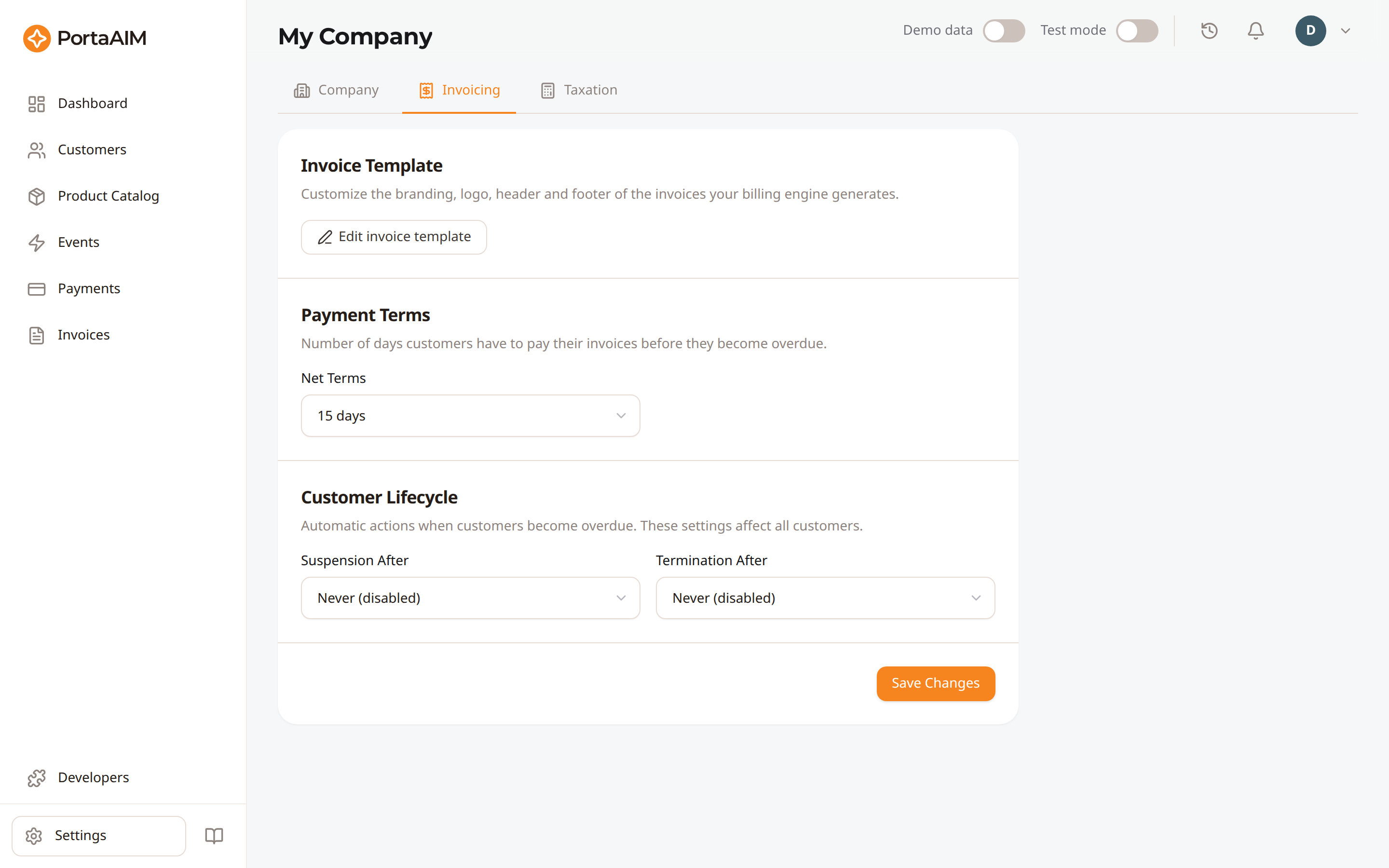
My Company → Invoicing: overdue timing and auto-suspension rules.
Looking to change how invoices look — logo, colors, header and footer? See Invoice Template.
Accessing Invoice Settings
Navigate to Settings → Invoicing, or open the Invoicing tab on the My Company page.
Configuration Options
| Setting | Description | Default |
|---|---|---|
Net Terms (net_terms_days) | Days after an invoice is issued before it becomes overdue | 15 days |
Suspension After (suspension_days_after_overdue) | Days an invoice can stay overdue before the billing engine suspends the customer | 7 days |
Termination After (termination_days_after_overdue) | Days an invoice can stay overdue before the billing engine terminates the customer | 30 days |
These three settings apply to every customer. The name in parentheses is the field that the Tenants API reads and writes. The Default column holds the values that the setup wizard proposes. The two lifecycle fields read Never (disabled) until you set them.
A change to Net Terms reaches the invoices that are generated afterwards, because an invoice keeps the due date that it was issued with. A change to Suspension After or Termination After also changes when the invoices that are already overdue trigger each action.
Payment Terms
Net Terms determines when an invoice becomes overdue. For example:
- Invoice issued: March 1
- Net Terms: 15 days
- Payment due: March 16
- Status changes to Overdue after March 16
Dunning Ladder
An unpaid invoice puts the customer on a two-stage dunning ladder, the automatic sequence that follows a missed payment:
- Suspension: when the invoice has been overdue for the number of days set in Suspension After, the billing engine suspends the customer. Service access stops. Paying off the invoice that triggered the suspension lifts it automatically, but a partial payment does not. You can also reactivate the customer yourself.
- Termination: when the invoice has been overdue for the number of days set in Termination After, the billing engine terminates the customer. Termination is permanent.
What happens while a customer is suspended
The billing engine credits one day's subscription fee back for each day that the customer stays suspended, and the next invoice offsets that credit against the fee. The billing engine refuses to authorize a suspended customer, so no new session can start. A charge that your integration posts directly, without asking for authorization first, is still billed.
Seeing what is coming, and when
Once Suspension After carries a number of days, the customer page shows a warning for any customer an overdue invoice has put on the ladder: which change is coming, the date it happens, and the invoice number that must be paid to stop it.
If someone has pushed the date back, the warning leads with the new date and keeps the original one alongside it.
The warning is deliberately limited to a customer who is active and has something overdue. An invoice still inside its payment term raises no warning, so a customer who simply has not paid yet does not read as a customer in trouble. Neither does a suspended or terminated customer, whose status the page already states.
Only Suspension After turns the warning on. Leave it at Never (disabled) and no warning appears, even with Termination After set to a number of days and a termination genuinely coming, because the billing backend reports no date for a termination.
You can intervene at any point in the ladder (manually suspend or terminate earlier, or extend the timeline by adjusting the settings).
Choosing the timings
On the Invoicing tab (and in the setup wizard) each timing is a dropdown of common presets phrased as a number of days: 15 days, 30 days, and so on. Pick Custom… to enter any other number. A reset control sits beside any field that is not resting on the value the wizard proposes, and it puts that value back.
Two values have a special meaning:
- Due on receipt (0 days) / Immediately (0 days) — the deliberate
0: payment is due the day the invoice is issued, or the lifecycle action happens the moment the invoice becomes overdue. - Never — for suspension and termination only, choosing Never turns the automatic action off entirely. No customer is auto-suspended (or auto-terminated) no matter how long an invoice stays overdue.
Immediately and Never are distinct: Immediately acts at once, Never never acts. Payment terms cannot be set to Never — every invoice has a due date.