Setup Wizard
After registration, the setup wizard walks you through the essential configuration steps to get your billing system operational.
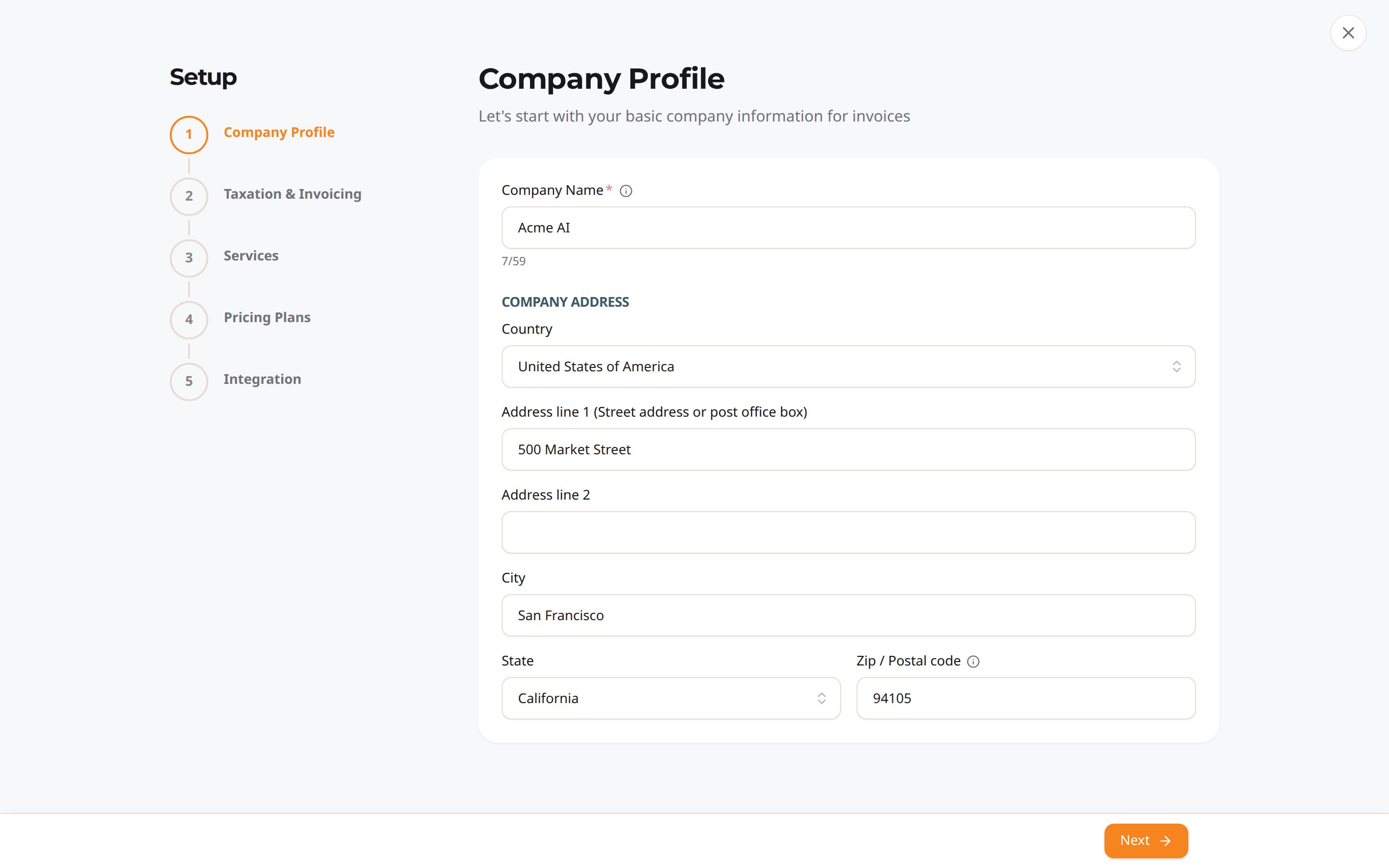
Step 1 of the setup wizard, with the five setup steps listed down the left.
Wizard Steps
Step 1: Company Profile
Set up your company details:
- Company name (pre-filled from registration)
- Address: Street, city, state/province, postal code, country
- Contact information
These details appear on invoices sent to your customers. Later, you can also customize the invoices' look — logo, colors, header and footer — with the invoice template editor.
Step 2: Tax Configuration
Configure how taxes are applied to charges:
- Tax rate percentage (e.g., 20% VAT, 10% GST)
- Inclusive or exclusive pricing
- What's taxed: Subscriptions, usage, or both
Skip this step if you don't collect tax or want to configure it later.
Step 3: Create Your First Service
Define at least one service type. This represents a category of AI capability:
- Service name (e.g., "AI Tokens")
- Service code (e.g.,
AI-TOKENS) - Measurement unit (tokens, minutes, API calls, etc.)
- Billing unit and conversion ratio
- Vendor cost — turn This service has a vendor cost on if you also want to record what you pay (off by default)
Past a page's worth of services, the step pages through them.
You can create more services later from the Product Catalog.
Step 4: Create Your First Plan
Build your first pricing package:
- Plan name (e.g., "Starter Plan")
- Monthly subscription fee
- Service pricing: Per-unit rates for your services
- Optional: Free quotas with overage (multi-tier volume pricing is coming soon)
Past a page's worth of plans, the step pages through them, so every plan stays reachable.
Step 5: Integration Setup
Connect your application:
- API Keys: Create an API key for the Charging API
Step 6: Test Charge
Send one charge through the Charging API before you go live, against a Test Mode customer:
- Customer: the customer to bill. Their plan is shown beside it and follows the customer
- Service and Item: what to bill for
- Units: how much usage to report
The step is complete once a charge has actually been billed. If a service or item you expected is unavailable, the customer's plan does not include it: add it to the plan, or pick a customer whose plan does.
Completing the Wizard
After completing all steps, you're taken to the main dashboard. Your billing system is now ready to:
- Accept usage events via the Charging API
- Onboard customers
- Generate invoices
- Track revenue
Skipping Steps
You can skip non-essential steps (like taxation) and configure them later from the Settings page. However, you need at least one service and one plan to start billing customers.
Re-accessing Setup
If you need to change any wizard settings after completion, all options are available in:
- Settings → Company Profile, Invoicing and Tax Configuration
- Product Catalog (services, items, plans)
- Developers (API keys)