API Keys
API keys authenticate your application when calling the PortaAIM Charging API and other programmatic endpoints.
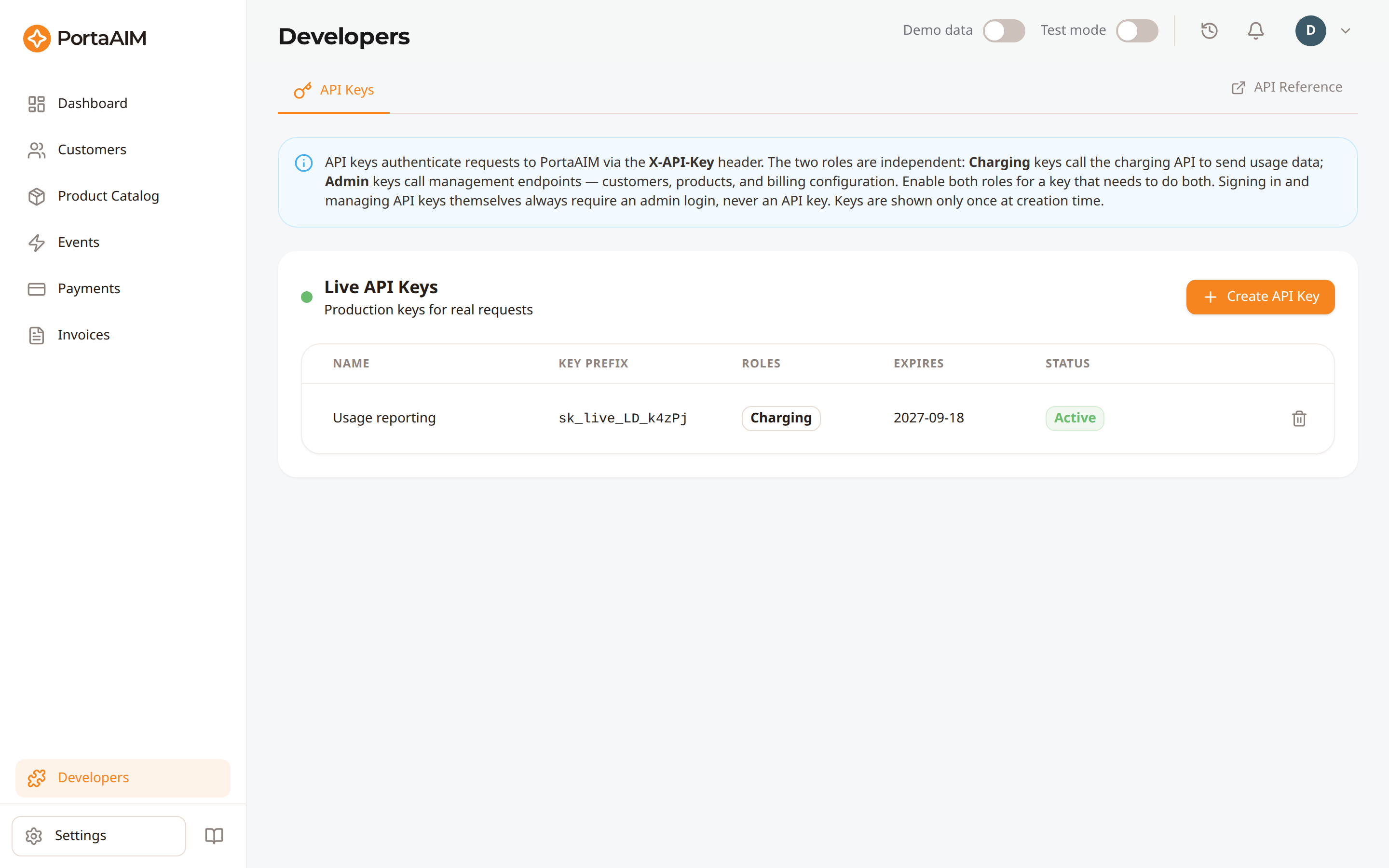
Developers → API Keys: create Charging or Admin keys. Key values are shown only once, at creation.
Accessing API Keys
Navigate to Developers → API Keys tab, or through the Settings page.
API Key List
The page shows all API keys for the current environment with:
- Key name/identifier
- Creation date
- Expiration date (optional — keys without an expiration never auto-expire)
- Status (Active / Revoked / Expired)
- Partial key display (the environment marker plus the first few characters)
A key whose expiration date has passed is rejected at request-time with an authentication error.
Creating an API Key
-
Click Create API Key
-
Enter a descriptive name (e.g., "Production Backend", "Staging Server")
-
Choose one or more Roles. Each role is independent — enable one or both. Neither includes the other:
charging— call the Charging API to send usage data (no management access)admin— management access to customers, products, and billing configuration (no charging access)
Enable both roles for a key that needs to do both.
-
Optionally set an Expiration date: the key stops working at the end of that day in your environment's timezone, whichever roles it has
-
Click Create
-
Copy the secret immediately — it won't be shown again
The full API key is only shown once at creation time. Store it securely. If you lose it, you'll need to create a new key.
Using API Keys
Include the API key in the X-API-Key header of your requests. A charging-role key submits usage:
curl -X POST https://api.portaaim.ai/api/v1/charging \
  -H "X-API-Key: your_api_key_here" \
  -H "Content-Type: application/json" \
  -d '{"customer_external_id": "...", "services": [{"service_code": "...", "item_code": "...", "units": 100}]}'
An admin-role key manages customers, products, and billing configuration the same way — no separate login required:
curl https://api.portaaim.ai/api/v1/customers \
  -H "X-API-Key: your_admin_role_api_key_here"
A few endpoints refuse an API key of any role and require an admin login (email/password → JWT) instead: managing API keys (creating, listing, revoking), GET /admins/me, and the session endpoints under /auth/*. See Endpoints That Require an Admin Login for the reason behind each one.
Key Scoping
API keys are scoped to:
- Environment: A key created in Sandbox only works in Sandbox
- Tenant: Keys only access your tenant's data
- Roles: Keys carry specific, independent permissions —
charginggrants the Charging API only,admingrants management access only. Each is independent, so a key needs both roles to do both.
The two roles are not a hierarchy — admin is not a superset of charging. An admin-only key cannot send charges, and a charging-only key cannot manage customers or products. Assign both roles when a key needs both capabilities.
Checking a Key
GET /api-keys/me reports what the key you send it is: its environment, its roles, its id and its
name. It is the first call to make when you wire up a key.
curl https://api.portaaim.ai/api/v1/api-keys/me \
  -H "X-API-Key: your_api_key_here"
{
  "environment": "sandbox",
  "roles": ["charging"],
  "key_id": "3f8c1e42-...",
  "key_name": "Billing worker"
}
Any valid key is accepted, whatever its roles. A key that cannot do what you expect answers with the roles it does carry, so you can see what is missing instead of guessing from a refusal.
A charge is billed in the environment the key belongs to, never the one your own code believes
it is working in. A live key used by mistake bills live customers and reports nothing unusual while
doing it. environment in this answer is the only way to confirm which one you hold before money
moves.
Revoking a Key
- Click the delete icon next to the key
- Confirm revocation
Revoked keys immediately stop working. Any application using the key will receive authentication errors.
Security Best Practices
- Use separate keys for different applications (frontend, backend, staging)
- Rotate keys periodically
- Never commit API keys to source control
- Use environment variables to store keys in your application
- Revoke keys immediately if compromised